
Schedules
Use Schedules to create, edit, import, export, and delete recurring plans. Review each schedule’s linked rule and transaction count before deleting it.
Open it from Data Management → Schedules (/schedules).
Budget impact: Schedule changes remain staged for review until you Save.
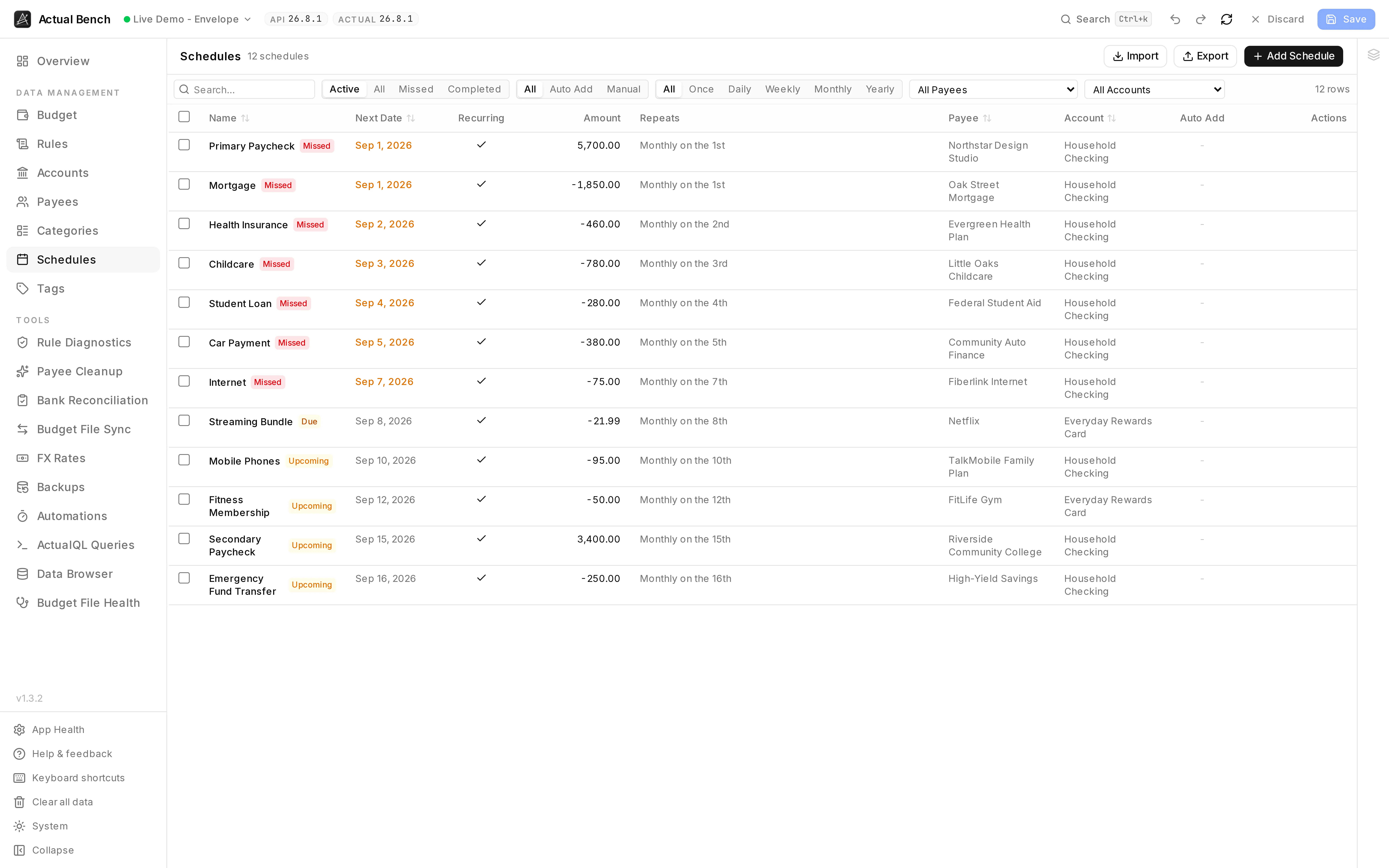
Next date, amount, recurrence, payee and account together - and the two marked Missed are the ones worth looking at first.
It shares the editing model every Data Management page uses.
What you get beyond Actual Budget
Section titled “What you get beyond Actual Budget”- CSV import and export of schedules for bulk setup and backup.
- Impact-aware deletion - every delete shows the schedule’s linked-rule status, auto-post flag, and transaction count first.
- A recurrence summary that reads like English, worked out from the start date.
- Edit as Rule - open the schedule’s server-managed rule directly in the Rules editor.
- Staged review - set up a dozen schedules, read them once, then Save.
Create a schedule
Section titled “Create a schedule”- On the Schedules page, open the schedule drawer to add a schedule.
- Set the name (optional), date (or recurrence), and amount.
- Optionally assign a payee and account.
- Save to stage the schedule.
Save a schedule you did not change and the drawer just closes - no empty draft. Close it with unsaved edits and it asks first.
Choose an amount mode
Section titled “Choose an amount mode”Schedule amounts always use one of three modes:
- Exact (
is) - Approximate (
is approx.) - Range (
is between) - with a low and high amount
A missing amount on the server is read as an approximate zero.
Configure recurrence
Section titled “Configure recurrence”- Frequencies: daily, weekly, monthly, yearly, each with a configurable interval.
- Monthly schedules support a specific day of the month (including “last day”) or a weekday-of-week position (for example “2nd Friday”).
- The table’s Repeats summary infers weekday/day anchors from the start date (for example
Every 2 weeks on Wednesday), and a Recurring column marks repeating schedules.
Weekend adjustment and end conditions
Section titled “Weekend adjustment and end conditions”- Weekend adjustment - a date landing on a Saturday or Sunday moves to the Friday before or the Monday after, your choice.
- End conditions - run forever, end after N occurrences, or end on a date.
Auto-add and linked rules
Section titled “Auto-add and linked rules”- Auto-add - Actual posts the transaction itself when the schedule falls due.
- Every schedule has a linked rule behind it, managed by the server. Edit as Rule in the drawer opens it.
Edit, delete, and filter
Section titled “Edit, delete, and filter”- Edit in the drawer. A saved edit stays on screen while the background refresh catches up with the server.
- Deleting confirms first, showing the linked rule, the auto-post flag and the transaction count.
- Filter by name, payee, account, frequency, and auto-add state.
Import and export
Section titled “Import and export”Import and export schedules as CSV (staged before saving).
Common problems
Section titled “Common problems”- The rule is read-only - it belongs to the schedule. Edit as Rule opens the parts you can change.
- The recurrence summary looks wrong - it is derived from the start date. Check the day or weekday anchor and the interval.
Related pages
Section titled “Related pages”- Rules - schedule-linked rules
- Tags
- Core Concepts