
Accounts
Use Accounts to create, rename, close, reopen, import, export, and delete accounts. Review balances, transactions, and rule references before you remove an account.
Open it from Data Management → Accounts (/accounts).
Budget impact: Account changes remain staged for review until you Save. Account notes save immediately.
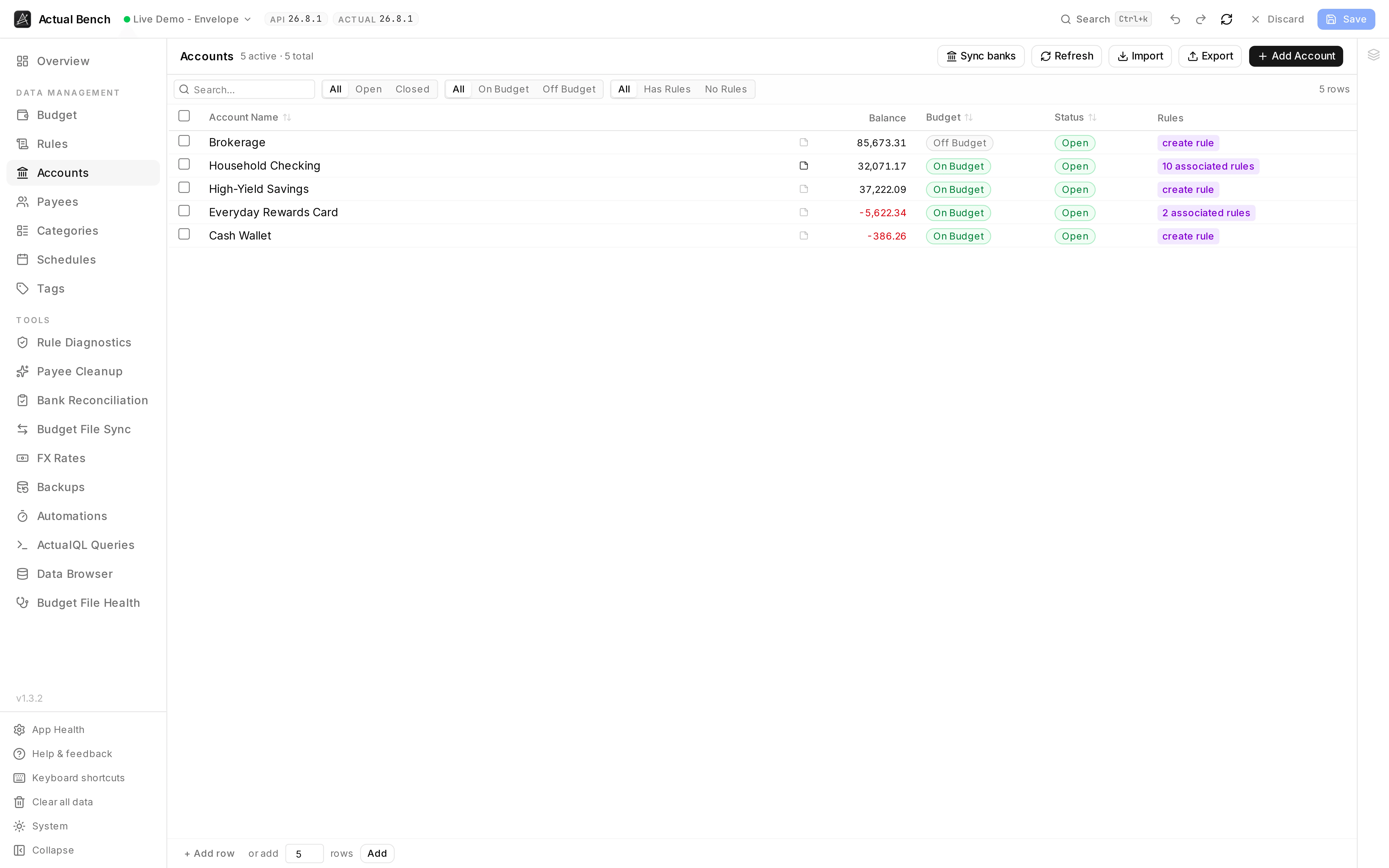
Balance, budget treatment, status and rule references on one row - so the question “what depends on this account?” is answered before you touch it.
It shares the editing model every Data Management page uses.
What you get beyond Actual Budget
Section titled “What you get beyond Actual Budget”- Create in bulk - paste tab-separated rows straight from a spreadsheet, or import a CSV.
- Set a starting balance as you create it. The Balance column stays editable while the row is staged.
- Bulk close, reopen, and delete with a single action across selected accounts.
- See which rules reference an account and jump straight to them.
- Impact-aware deletion - every close and delete shows the balance, the transaction count and the rule references first. A non-zero balance gets its own warning.
Create an account
Section titled “Create an account”- Select Add Account to open the form drawer.
- Enter a Name.
- Optionally set an Initial Balance (seeds the account’s starting balance on creation).
- Choose on-budget or off-budget with the toggle.
- Save to stage the new account.
To create several at once, use the bottom Add Rows / paste flow - the Balance column is editable there so you can set each new account’s initial balance inline.
Balances, closing, and deleting
Section titled “Balances, closing, and deleting”- Current balance is live - aggregated through ActualQL, refreshed roughly every 60 seconds or when you press Refresh. Negative balances go red.
- Open and close accounts individually or in bulk (close, reopen).
- Deleting or closing always confirms first, with the balance, the transaction count and the rule count in front of you. Money still in the account gets a budget-consistency warning.
Filter and sort
Section titled “Filter and sort”Filter by name, status, budget type, and whether any rules reference the account. Sort by name, status or budget type. Staged rows ignore the sort and stay at the top until you Save.
Every row has a note button beside the name. Notes render as Markdown, edit inline, and save immediately - nothing to do with your staged edits.
Import and export
Section titled “Import and export”Export accounts to CSV or import them (staged before saving). CSV columns:
name(required),offBudget,closed.
Common problems
Section titled “Common problems”- “Can’t change the account type” - correct. It is fixed at creation.
- A delete warns you - read the dialog. Money left in the account affects budget consistency.
- A new row stays highlighted - it is staged, not saved. Press Save.
Related pages
Section titled “Related pages”- Editing, review and save - the shared editing model
- Rules - how rules reference accounts