
Rules
Use Rules to create, edit, review, merge, import, and export your full rule set. References show the payee, category, or account name instead of its ID.
Open it from Data Management → Rules (/rules).
Budget impact: Rule changes remain staged until you review and Save. Rule Diagnostics is a separate workspace; any fix you start follows the same staged Save workflow.
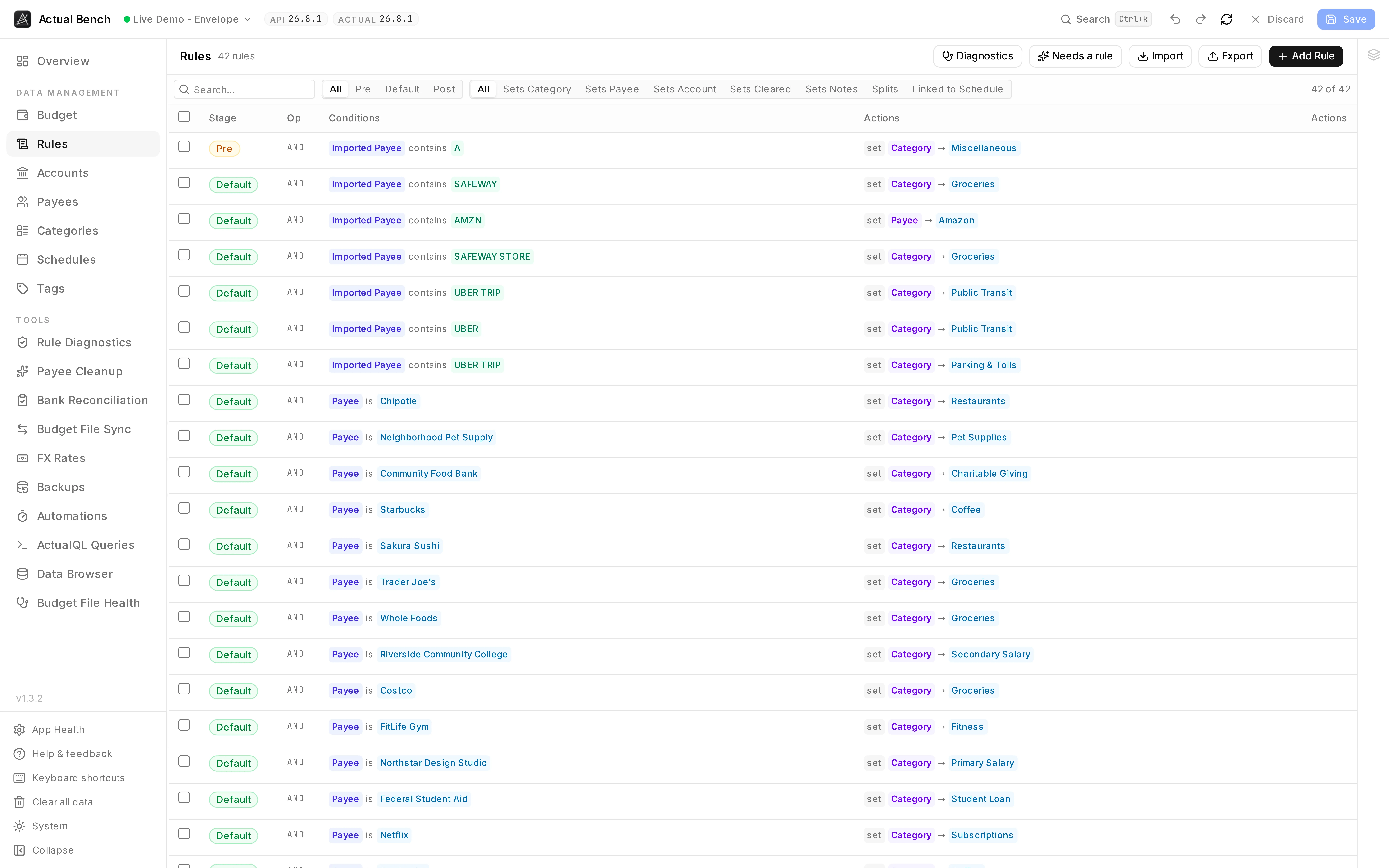
The whole rule set, with every reference resolved to the payee, category or account it names.
Start with the job you have
Section titled “Start with the job you have”- Create or edit automation: use the rule builder below.
- Find broken, overlapping, or duplicate rules: run Rule Diagnostics.
- Move or bulk-edit a rule set: export it to CSV, edit it, then import and review the staged result.
What the Rules page supports
Section titled “What the Rules page supports”Use this page to review the complete rule set and manage rules in bulk.
- Payees, categories and accounts appear as names - in the table and in the search box. Nothing to decode.
- Handlebars templates and Excel-style formulas, for actions that work something out instead of setting a constant.
- Split rules - one transaction divided across several categories, by fixed amount, percentage, formula or an equal share of what is left.
- Merge duplicates into one rule, from here or straight from a diagnostics finding.
- CSV in and out for the whole set - edit fifty rules in a spreadsheet, or keep a copy before you try.
- Rule Diagnostics audits the set as a whole: broken references, rules that shadow each other, rules that cannot match the next import.
How a rule works
Section titled “How a rule works”A rule has conditions - when it applies - and actions - what it does. Actual runs rules as a transaction arrives. It never goes back over transactions you already have.
Every rule sits in one of three stages, run in order: pre, default, post. That is how you
control which rule goes first. Clean up the imported payee text in pre, categorise it in default,
let post handle what is left over.
Create a rule
Section titled “Create a rule”- On the Rules page, create a rule to open the editor.
- A new rule starts with a guided default condition (
Payee is) and a default action row. - Set the condition field, operator, and value.
- Add an action.
- Select Add Rule to stage the rule.
- Review the staged rule in Draft Changes, then select the top-bar Save to write it to Actual.
Nothing is flagged red while you are still typing. Validation waits until you edit a row or try to save, then marks what is missing and warns about destructive combinations and about a rule with no conditions, which never matches. Close the drawer with unsaved edits and it asks first.
Add conditions
Section titled “Add conditions”Bench offers exactly the fields and operators Actual’s engine accepts, derived from the engine itself - so a rule you build here is a rule Actual will run.
- Fields: imported payee, account, category, category group, date, payee, notes, amount, amount (inflow), amount (outflow), and cleared.
- Combine them with AND / OR logic (
conditions_op). - Text operators:
is,is not,contains,does not contain,is one of,is not one of,matches(regex, with a syntax hint), and on notes,has all tags/has any tag. - Date operators:
is,is approx.,is after,is after or equals,is before,is before or equals. - Amount operators:
is,is approx.,is between, and the four comparisons. Pick amount (inflow) or amount (outflow) to match only money coming in or only money going out - outflows compare as positive numbers, so “amount (outflow) is greater than 100” reads the way you would say it. - References to a payee, category or account are blue chips. Literal text is green. One glance tells you which you are looking at.
Not every operator applies to every field, and Bench only offers the ones that do. Notes has no
is one of; imported payee has no tag operators; only account has is on budget / is off budget.
Add actions
Section titled “Add actions”Common actions include set payee, set category, set account, set amount, set notes, and link schedule.
Templates
Section titled “Templates”The {} button on an action switches it to Handlebars, for example
{{regex imported_payee 'foo' 'bar'}}. Templates show as amber monospace chips in the table.
Formulas
Section titled “Formulas”The ƒ button switches an action to an Excel-style formula, run by HyperFormula -
=IF(ISBLANK(notes), imported_payee, notes). It has to start with =. One row can be a template or
a formula, never both.
Both modes are available on every set action except payee, category and account - those hold ids rather than text, so computing one would not help. Prepend/append notes, delete transaction, link schedule and the split Allocate row have their own inputs and no mode toggle.
Split a transaction across categories
Section titled “Split a transaction across categories”A split rule turns one incoming transaction into a parent plus several children, each with its own category. Use it for the shop where half the receipt is groceries and half is household, or to put a fixed service charge on its own line.
- In the rule editor, choose Add split. The actions section grows a Split 1 group.
- Each split starts with an Allocate row saying how much of the transaction it takes:
- a fixed amount - a literal figure.
- a fixed percent of the remainder - a percentage of what is left after the fixed amounts and the formulas.
- based on a formula - an
=expression, as above. - an equal portion of the remainder - whatever is left, shared equally between the splits that ask for it.
- Add the actions for that split - typically set category, and optionally payee or notes.
- Add split again for as many children as you need.
Actual works them out in three passes: fixed amounts and formulas first, then percentages of whatever remains after those, then the equal shares of what is still left, with any rounding difference going to the last one. So a percentage is a percentage of the remainder after both the fixed amounts and the formulas have taken theirs.
Amount, cleared, account and date belong to the transaction as a whole, so they are only offered in the Apply to the whole transaction group at the top, never inside a split. Splits are numbered from 1, and removing one renumbers the rest.
Split rules cannot be merged - flattening two of them into one would produce a rule nobody wrote, so Bench asks you to edit them individually instead.
Edit, duplicate, filter, and search
Section titled “Edit, duplicate, filter, and search”- Duplicate a rule with one click.
- Filter the list by stage, payee, category, Splits to find every rule that divides a transaction, or Linked to Schedule for the rules a schedule owns - the ones carrying the calendar badge, which the Schedules page maintains and this page will not delete.
- Search knows the names. Type “Groceries” and it finds the rules whose
oneOfcondition holds that category’s id. You never see a raw id. - Arriving from the Payees or Categories page filters the list to that entity for you.
Merge rules
Section titled “Merge rules”- Select the rules to combine.
- Choose Merge to open the merge dialog (it shares the main editor’s sections and validation).
- Review the merged result; the Delete originals checkbox is pre-ticked for full duplicates and unticked for near-duplicates.
- Confirm to stage the merge.
Merge from a Rule Diagnostics finding and you land back in the report, ready for the next one.
Schedule-generated rules
Section titled “Schedule-generated rules”A schedule writes its own rule, with a link-schedule action. Those are read-only here, and left
out of bulk selection and merge. Change them from Schedules.
Import and export
Section titled “Import and export”The CSV is long-format: one condition or action per row, grouped by rule_id. The columns that matter
are rule_id, stage, conditions_op, row_type (condition or action), field, op,
value, split_index and options - separate multiple oneOf values with |. Formulas export
with a leading ' so your spreadsheet does not try to evaluate them. The prefix comes off again on
import.
split_index is blank for anything applying to the whole transaction, and 1, 2, … for the
splits. options carries the rest as key=value;key=value - the allocation method on an
Allocate row, and inflow=true / outflow=true on an amount condition. A file exported before
those two columns existed still imports; the importer matches columns by name.
An action with an operator the importer does not recognise skips its whole rule and tells you which operator it was, rather than quietly importing it as something else.
Examples
Section titled “Examples”Substitute your own payees and categories:
- Categorize by payee - condition
Payee is "Fresh Market", actionset category "Groceries". - Normalize imported text - a
pre-stage template action onpayee_name:{{regex imported_payee 'SQ \*' ''}}. - Fall back to imported payee - a formula on
notes:=IF(ISBLANK(notes), imported_payee, notes). - Route by amount - condition
amount is greater than 1000.00, actionset category "Large Purchases". - Only large payments out - condition
amount (outflow) is greater than 500.00, so incoming money of the same size is left alone. - Tagged notes - condition
notes has any tag "#reimburse", actionset category "Owed to me". - Split a warehouse shop - condition
Payee is "Costco", then Split 1 allocating a fixed percent of 60% toGroceriesand Split 2 taking an equal portion of the remainder toHousehold.
Safety and limitations
Section titled “Safety and limitations”- Rules run when a transaction is created, and several can hit the same transaction. If the result surprises you, the answer is almost always stage order.
- A rule with no conditions never runs. Actual treats an empty condition list as “no match”, not as “match everything”, so a rule with only actions is inert. The editor says so.
Troubleshooting
Section titled “Troubleshooting”- A rule never fires - check that it has at least one condition (a rule without one never matches), then check its stage, and whether an earlier stage already changed the field it tests.
- A split will not save - each split needs exactly one Allocate row, and a percentage has to be between 0 and 100.
- AND/OR confusion - check
conditions_op. AND needs every condition; OR needs one. - A regex will not match - read the syntax hint on the
matchesoperator. - A template or formula will not save - formulas start with
=, and one row cannot be both. - A schedule-linked rule will not edit - that is deliberate. Go to Schedules.
Related pages
Section titled “Related pages”- Rule Diagnostics - lint your rule set for problems
- Schedules
- ActualQL Queries