
Categories
Use Categories to create and manage category groups and categories, import or export the hierarchy, hide categories, and review deletion impact.
Open it from Data Management → Categories (/categories).
Budget impact: Category changes remain staged for review until you Save. Category and group notes save immediately.
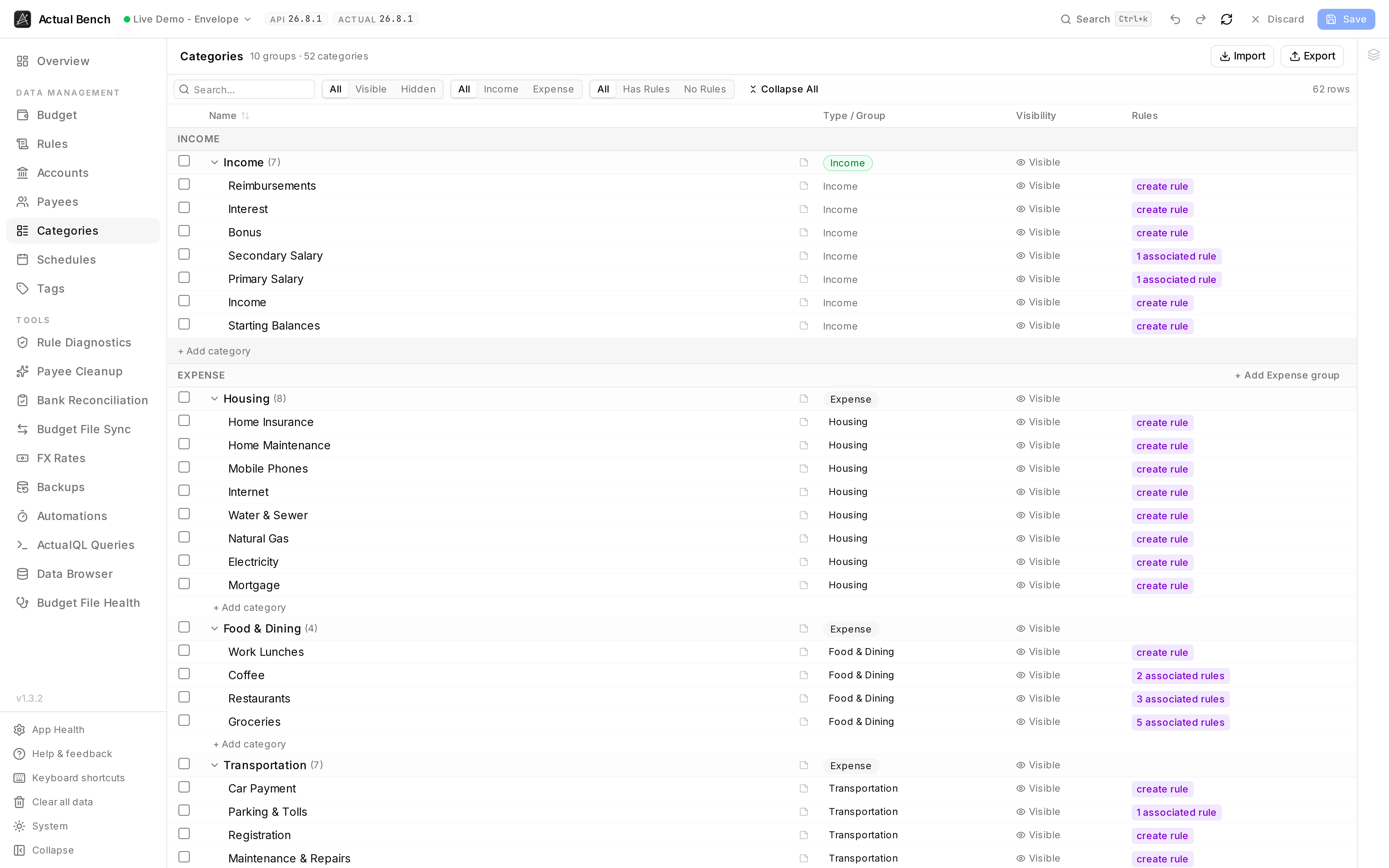
Ten groups and fifty-two categories in one view, income and expense separated, with visibility and rule references on every row.
It shares the editing model every Data Management page uses.
What you get beyond Actual Budget
Section titled “What you get beyond Actual Budget”- The whole hierarchy as one CSV - seed a budget’s structure from a spreadsheet in a single pass, or take a copy.
- Group deletion counts the cascade - how many child categories, how many transactions across all of them, warned about before anything stages.
- See which rules reference a category and jump straight to them.
- Notes on category groups, not just categories.
Groups and categories
Section titled “Groups and categories”- Create category groups (income or expense type) and categories within them.
- Rename groups and categories inline; collapse or expand group rows (or all groups at once).
- Moving a category between groups opens an editor when you ask for it. Rendering fifty dropdowns up front would make a big table crawl.
Hide, show, and delete
Section titled “Hide, show, and delete”- Toggle visibility (hidden / visible) per category or per whole group.
- Deleting a category confirms with its transaction count and rule references. Deleting a group adds the child count and every child’s transactions, plus a cascade warning. Bulk delete works out what is already implied and totals it once.
Filter and sort
Section titled “Filter and sort”Filter by name, type (income / expense / all), and visibility (visible / hidden / all). Sort by name.
Each category and group row has a note button. Read, add, edit, or clear notes inline - they save immediately, independent of staged category edits.
Import and export
Section titled “Import and export”Export or import the full group hierarchy as CSV (staged before saving). CSV columns:
type(grouporcategory, required),name(required),group,is_income,hidden.- Group rows must appear before the categories that reference them.
Common problems
Section titled “Common problems”- “Can’t move an income category” - income categories are locked to the income group.
- A group delete warns loudly - it cascades to child categories; read the aggregated impact first.
- Imported categories landed ungrouped - check that each group row appears above its categories in the CSV.
Related pages
Section titled “Related pages”- Editing, review and save - the shared editing model
- Budget - budget the categories you create here
- Rules - how rules reference categories