
Automations
Use Automations to schedule bank syncs, backups, backup verification, and safe budget-file syncs. The page also shows each run, its outcome, duration, retries, and redacted log.
Open it from Tools → Automations (/automations).
Budget impact: An automation follows the budget-impact rules of its job. It also saves run history, duration, outcome, and a redacted log in Actual Bench.
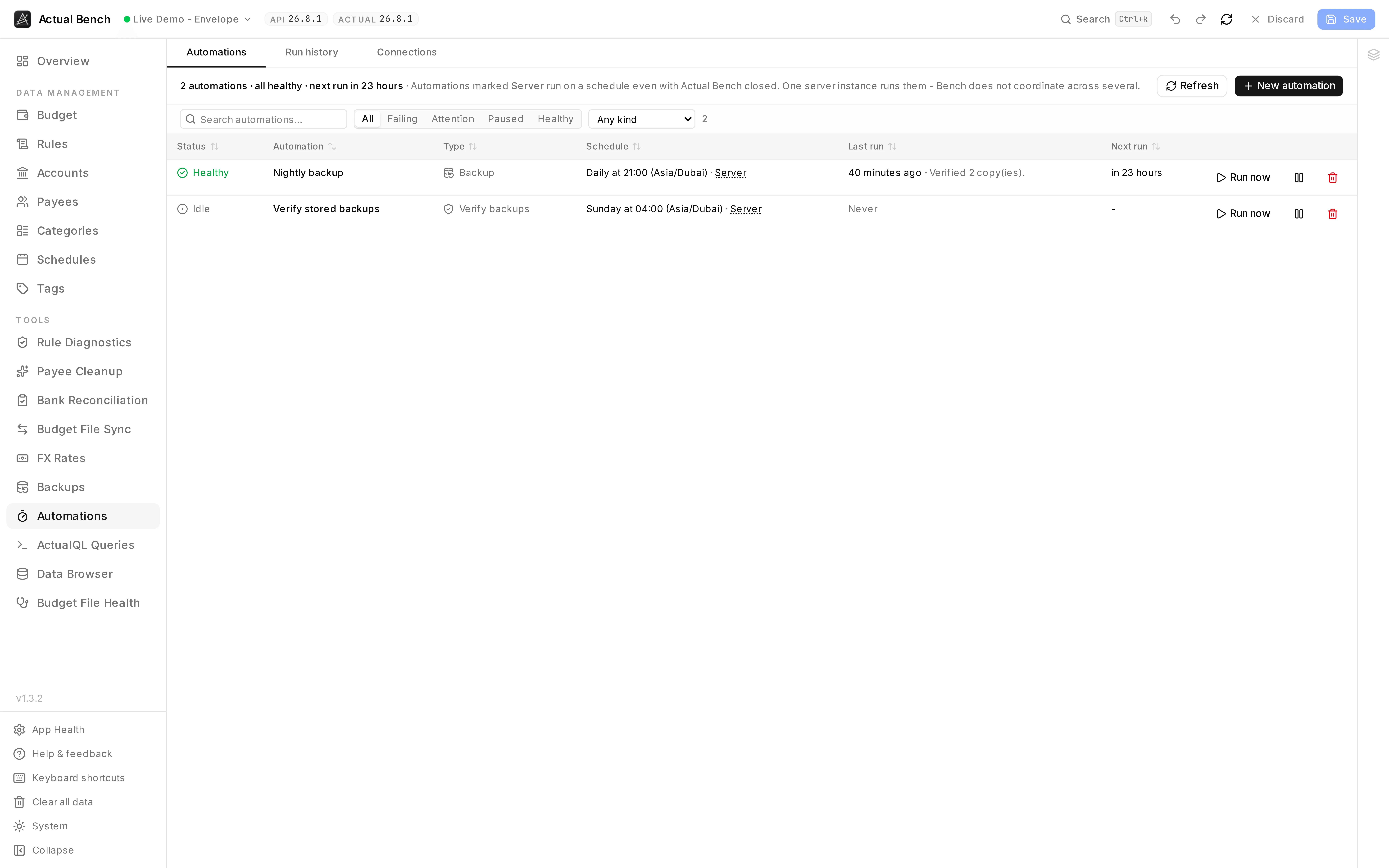
Each row shows the job, schedule, next run, and most recent result.
What can run on a schedule
Section titled “What can run on a schedule”| Kind | What it does | Set up in |
|---|---|---|
| Bank sync | Asks Actual to pull new transactions from the banks you connected to it | Bank Sync |
| Backup | Takes a verified copy of your budget and of Bench’s own settings | Backups |
| Budget file sync | Runs a saved sync flow, safe items only | Budget File Sync |
| Verify backups | Re-reads stored copies to check they are still readable | created with your first backup rule |
New automation on the Automations page lists all of them and takes you to where each is configured. A backup and a sync flow are set up in their own screens because that is where the decisions live; what they share is the engine that runs them.
Check where an automation runs
Section titled “Check where an automation runs”Every automation says where it runs, on its own row:
| Runs on the server | Runs on schedule even with Actual Bench closed. Works with HTTP API and Direct connections, once the budget is enrolled for unattended access. |
| Runs in your browser | Runs only while Bench is open in a tab. Close it and nothing happens. This is a convenience, not automation. |
For a Direct connection, a scheduled run opens the budget on the Bench server, so the Bench server must be able to reach your Actual server (see Deployment).
One instance only. The engine runs inside the Bench server process. Running two containers against one database would run your automations twice; Bench does not coordinate across instances.
Unattended access
Section titled “Unattended access”Anything that runs with the browser closed needs credentials the server can use, which means two
things: SYNC_VAULT_KEY set on the server, and the budget itself enrolled.
The Connections tab lists the budgets Bench may act on, when each was enrolled, and - the column worth the tab - what depends on it. Withdrawing a credential stops those automations, so the confirmation names them before it happens.
Three things to expect:
- Bench checks before it saves. When you enrol, Bench checks the password or API key with the server. For a Direct connection this means opening the budget, which usually takes a few seconds but can take a few minutes the first time. If the check fails, Bench shows the reason and nothing is saved.
- Enrolment is per budget, not per server. Three budgets on one server are three entries.
- Bench can enrol any budget you have connected to in this browser session. After that, the other budgets on the same server can be enrolled without connecting to them (see below).
Other budgets on your servers
Section titled “Other budgets on your servers”Bench saves one password or API key per server. Once one budget on a server is enrolled, the Connections tab lists that server’s other budgets on its own, and Enrol budgets on this server enrols the ones you choose, with nothing more from you. An encrypted budget asks for its encryption password. Each budget is checked with the server first, and one that fails shows why on its own row without holding up the others. Refresh re-reads each server’s list.
A budget can be reached through HTTP API or Direct, but it is enrolled only one way at a time. Direct is recommended: it needs no extra service and reports bank sync results in full. A budget enrolled through HTTP API that Bench can also reach through Direct offers Switch to Direct. Switching checks the new way first, then moves the budget’s automations, flows and backup rules over. Each row on this tab shows which way it is enrolled.
You can enrol from Connections, from the bank sync or backup dialogs, or from a Budget File Sync flow - all four write the same list. This works the same for HTTP API and Direct connections.
Schedules
Section titled “Schedules”Choose an interval, a daily, weekly, or monthly schedule, or a cron expression.
Whatever you pick, the picker says back what it understood and when the next runs land. That
second line is the one that catches mistakes: 0 0 * * * reads like a fair guess at midnight until
the preview shows the next run is fourteen hours away.
Clock-based schedules carry an explicit time zone. Daylight saving is handled deliberately: a time that does not exist on a spring-forward day runs as the gap closes, and a time that happens twice on a fall-back day runs once.
Run history
Section titled “Run history”Run history shows every run across every automation, filtered by outcome first - what failed? in one click - then by automation and kind, and searchable by the line a run reported. Each run expands to its result, its duration, any retries, and a redacted log.
An automation’s own drawer keeps the newest ten runs, which is enough to answer “is this healthy”.
Stopping a run
Section titled “Stopping a run”By default, each run happens in a worker thread of its own, with its own memory limit. A run that hangs can be stopped, and a run that reaches its memory limit is normally ended on its own. (If your operator set Bench to run automations in the server’s own thread, time limits can only ask a run to stop. See Configuration.)
- Every kind of automation has a time limit: budget file sync 20 minutes, bank sync 10, backup 60, verify backups 30. At the limit the run is asked to stop. If it has not stopped 10 seconds later, its thread is ended.
- Cancel appears on an automation’s row while it is running, and stops it the same way.
- A run that reaches its memory limit is ended. It reports “Ran out of memory”, and normally the server and any other runs carry on. The limit covers the run’s working memory, not everything it uses, so it is not a guarantee: if the container itself runs out of memory, the whole of Bench can stop. Your operator can raise the limit, or give the container more memory (see Configuration).
What a stopped run is called depends on how far it got:
| Stopped while… | Shown as |
|---|---|
| Only reading | Failed, or Cancelled if you pressed Cancel |
| It may already have changed something: applying a sync, pulling from a bank, writing a backup | Stopped, may have made changes |
Stopped, may have made changes is never retried automatically, because repeating a write could duplicate it, and it does not count toward auto-pause. Check the budget or backup destination before relying on what that run did. The next scheduled run goes ahead as normal.
A run that finishes its work just as the time limit passes is recorded as finished.
When something fails
Section titled “When something fails”Bench treats a failure as information, not an emergency:
- Backoff. Attempts space out after a failure, up to a ceiling, so a broken job stops hammering whatever it cannot reach.
- Auto-pause. After a run of consecutive failures the automation pauses itself and says why. Resume clears both the pause and the streak. Editing a schedule does not clear a pause.
- Overdue is a warning. An automation well past its next run is flagged even when nothing failed.
- Busy is not failure. If the maximum number of runs is already going, a scheduled run waits for the next minute and does not count toward the streak.
- Fail closed on credentials. An automation that names a credential it cannot resolve - vault off, key rotated, enrolment withdrawn - does not run at all, and pauses with that reason.
What counts as a failure is the job’s own judgement, and the two answers differ on purpose. A backup that reached one of two destinations is reported as partial but does not count against the streak: pausing it would stop the copies that were still working. A scrub that finds a damaged copy does count - repeating it will not improve matters, and someone should look.
Pausing and deleting
Section titled “Pausing and deleting”Pause stops an automation running and keeps everything else - its schedule, its history, its credentials.
Delete removes the automation and its run history. What the automation produced is untouched: backups stay in their destinations, synced transactions stay in the budget. Only the record of the runs goes.
That is why deleting a backup rule does not always delete its automation. If the automation has never run, it is removed with the rule. If it has history, it is paused with an explanation instead, so the record of backups that actually happened survives the rule that made them. Delete it yourself from this page when you no longer want that record.