
Connect to a budget
Use a connection to open an existing Actual budget. Choose Direct Actual Server for most
installations. Choose HTTP API Server only when your installation already runs
actual-http-api.
When Direct mode is enabled, it is selected by default.
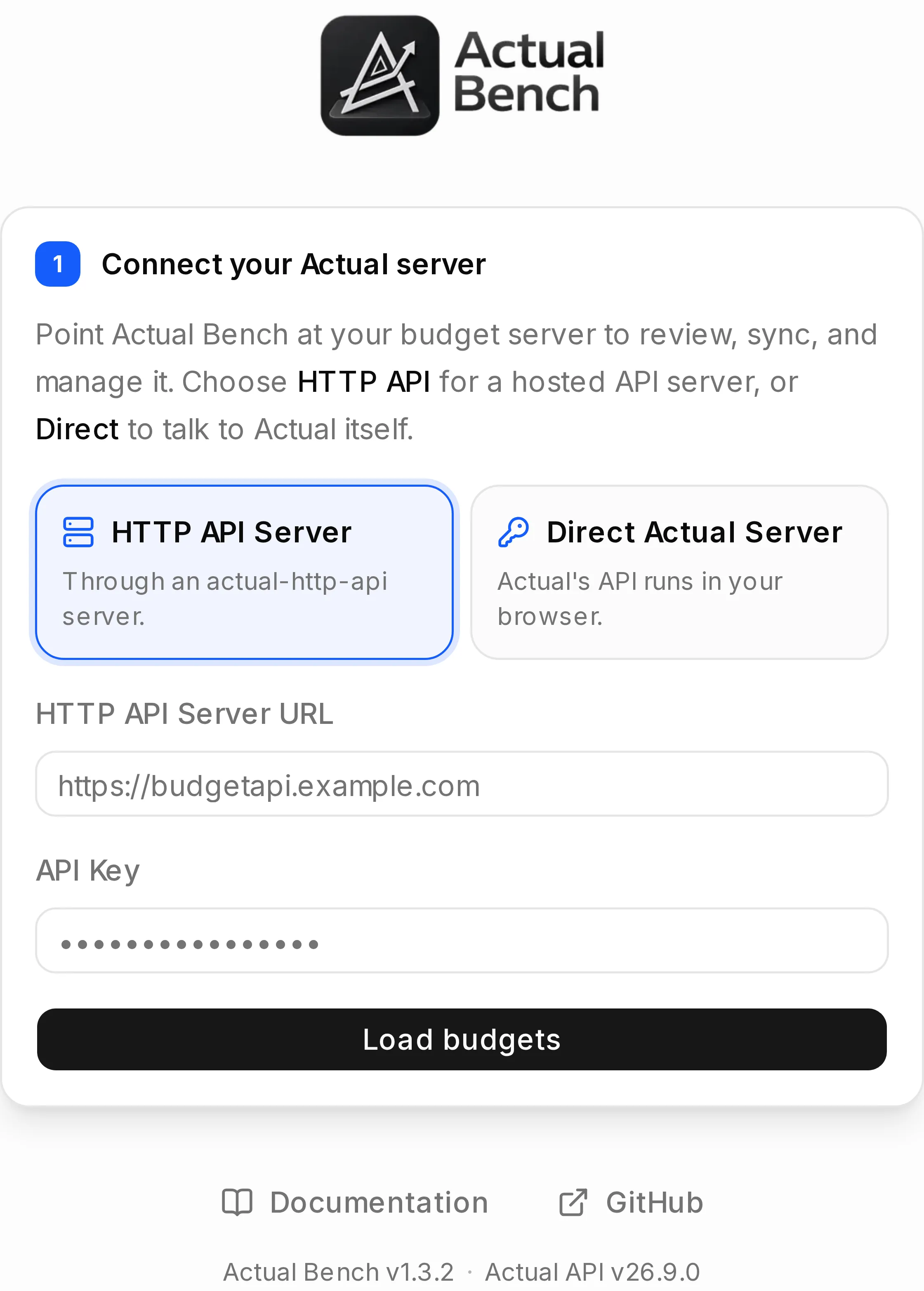
Two ways in. Direct talks to your Actual server the way Actual does; HTTP API goes through
an actual-http-api server if your installation already has one.
Choose a mode
Section titled “Choose a mode”| Direct Actual Server | HTTP API Server | |
|---|---|---|
| Best fit | Most new installations | Existing actual-http-api deployments and unattended sync |
| You enter | Actual Server URL and server password | HTTP API URL and API key |
| Actual runs | In your browser | On the API server |
| Network path | Your browser must reach Actual Server | Actual Bench must reach actual-http-api |
| Unattended server sync | No | Yes, when configured |
Both modes handle encrypted budgets and every workspace. Where a mode genuinely changes what a feature can do, that feature’s guide says so.
Connect
Section titled “Connect”- Choose Direct Actual Server or HTTP API Server.
- Enter the server URL and the requested credential.
- Select Load Budgets.
- Choose a budget. If it is end-to-end encrypted, enter its separate Encryption password.
- Select Connect.
Bench opens the Budget Overview.
Reconnect later
Section titled “Reconnect later”You can save non-secret recent details or optionally save encrypted server credentials:
- Recent connection details keep labels and URLs for the current tab. No secrets. Close the tab and you type your credentials again.
- Remember this server is an encrypted vault. The server credential goes into Bench’s metadata database, locked with a passphrase you choose.
Remember a server
Section titled “Remember a server”- On the budget step, select Remember this server.
- Create or unlock the shared vault passphrase.
- Connect. The server credential is encrypted and saved; an encrypted budget’s password is saved separately for that budget.
Saved servers show up in the Connections list, and as a choice when you add a server - marked with a lock. Choosing one loads its budgets with the saved password or API key. While your saved connections are locked, saved servers cannot be chosen: unlock them first, or add a new server by typing its details. Selecting Lock also clears anything the add-server form was holding. Budgets that are already open stay open and you can still switch between them. Choose how long to keep the vault unlocked when you enter your passphrase: 8 hours, 24 hours, 7 days, or 30 days. The timer resets when you use the vault. Locking it, clearing browser cookies, or restarting Bench always requires your passphrase again. One server is stored once, however many budgets live on it.
Remembered servers only survive if the volume holding Bench’s metadata database is persisted - /data
by default, or wherever ACTUAL_BENCH_DB_PATH points. If you run the installation, see
Upgrades and backups.
Switch between budgets
Section titled “Switch between budgets”Use the top-bar switcher to change budgets. It lists the budgets connected in this session, and under Saved, the budgets you saved with Remember that are not connected yet. Choosing a saved budget connects to it and switches to it in one step. If your saved connections are locked, Bench asks for your passphrase first. If the budget cannot be reached, you stay on the current one.
Budgets are grouped by server, with each server’s address and mode (Direct or HTTP API) on its heading, and a check marks the active budget. Saved budgets are listed most recently opened first. Point at a connected budget and select ✕ to disconnect it without switching to it. When you have many budgets, a filter box at the top narrows the list by budget or server name.
Each budget keeps a separate draft and cache. Confirm the active budget before you select Save or Apply.
How credentials are handled
Section titled “How credentials are handled”- By default, server passwords, API keys and encryption passwords never leave browser memory.
- Bench never shows a password, API key or encryption password it already has, not even hidden in a field. Once one is saved, taken from an open connection, or typed and used to load the budgets, the form says so, for example Password saved for this server, with an option to use a different one.
- Recent connection details contain no secrets.
- Remembered-server credentials are opt-in, and encrypted with your passphrase.
- Unattended-sync credentials are a different opt-in again, controlled by whoever runs the server.
See Work safely for the storage summary.
If budgets do not load
Section titled “If budgets do not load”Direct mode
Section titled “Direct mode”- Open the Actual Server URL in the same browser. If that fails, nothing else will work.
- Use HTTPS outside localhost.
- CORS or a same-origin reverse proxy may need configuring, which is the administrator’s job.
HTTP API mode
Section titled “HTTP API mode”- Check the API URL and
ACTUAL_API_KEY. - With both apps in containers,
localhostmeans Bench itself, not the API. Use a service name on a shared network, or any address that actually resolves.
Seeing only HTTP API mode means the administrator turned Direct mode off. Troubleshooting goes deeper.