
Budget Management
Use Budget Management to review and edit a full year of budget data. Switch the grid between Budget, Actuals, and Balance. Select cells, paste values, and use fill actions to update multiple months.
Actual Budget’s compact view is designed for daily work, showing Budget, Spent, and Balance together. This workspace separates those measures across twelve months so you can review annual patterns. This is especially useful for Tracking budgets, where plan, activity, and variance answer different questions.
Open it from Data Management → Budget (/budget-management).
Budget impact: Budget amounts, holds, and transfers remain staged until Save. Notes and carryover toggles are explicit immediate writes.
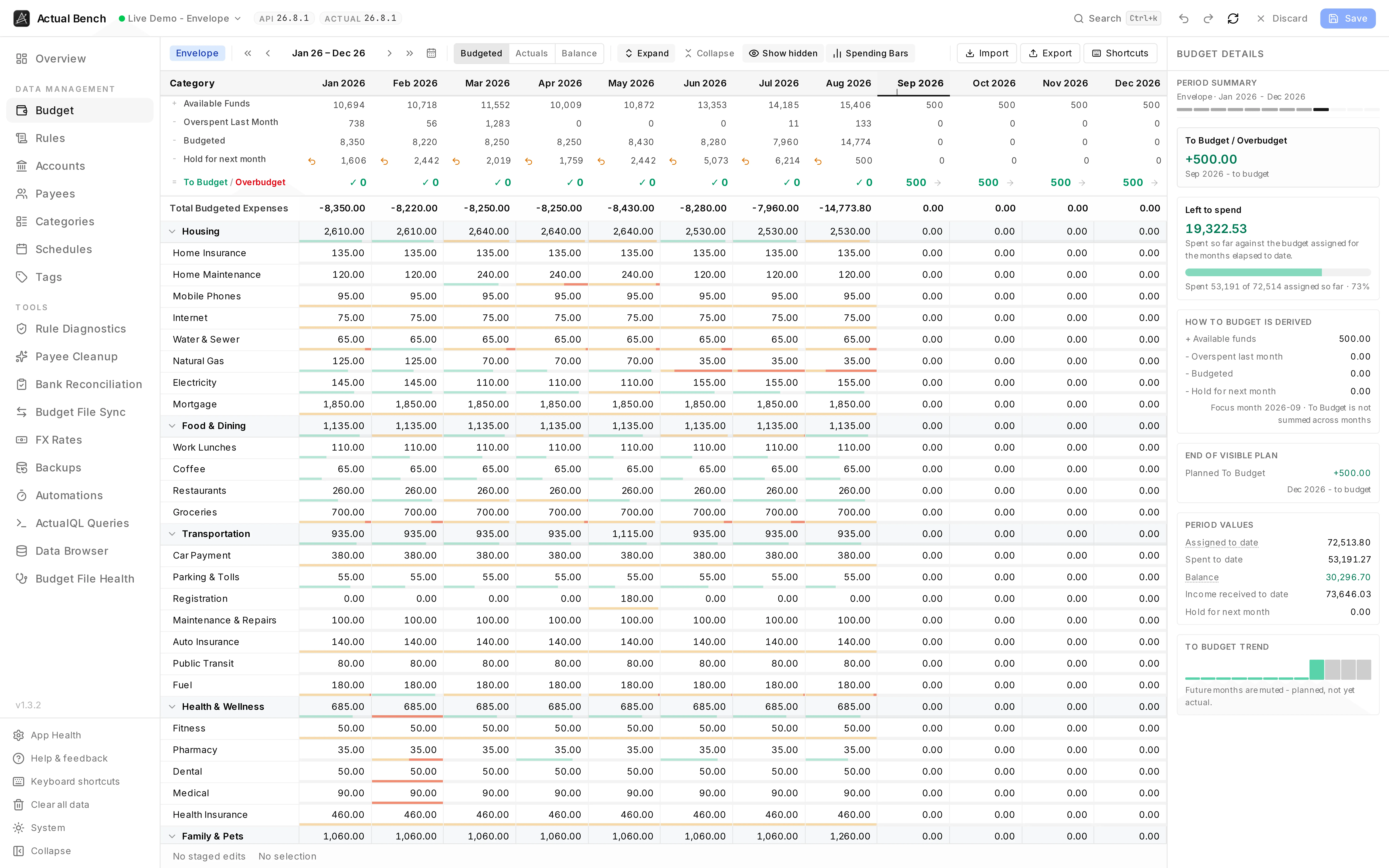
An Envelope budget: twelve months at once, focused on one measure. The panel on the right explains where the current month’s To Budget figure comes from, line by line.
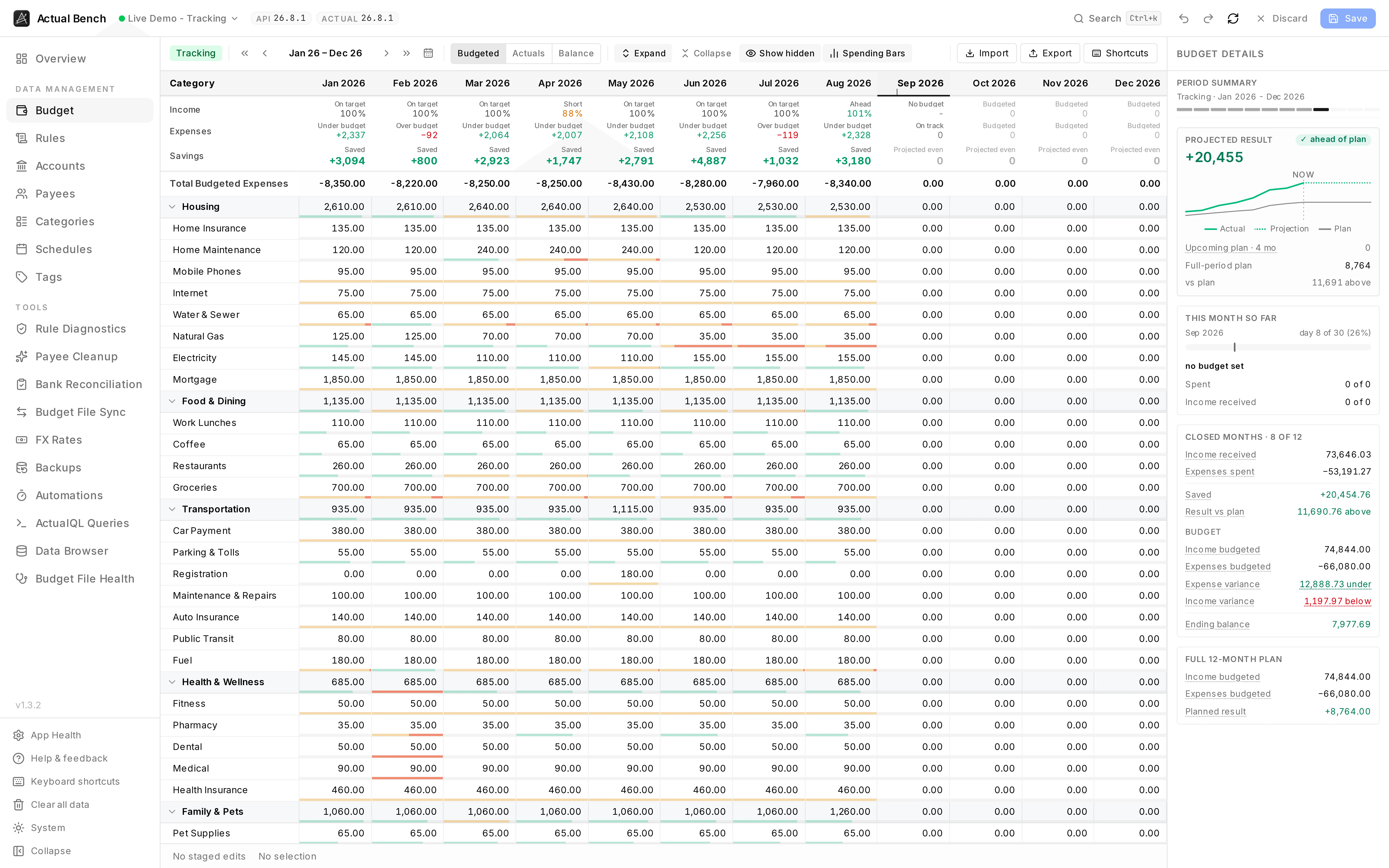
The same workspace on a Tracking budget. The two models answer different questions, so the grid asks different ones: envelope budgeting leads with what is left to assign, tracking with how the month is running against plan.
Get the full-year view
Section titled “Get the full-year view”- Check the Envelope or Tracking badge matches your budget.
- Pick Budget, Actuals or Balance. The whole grid follows.
- Read across the year. Select a row, group or month header to fill the details panel.
- Changing the plan? Edit a cell, paste a range, or use a fill action.
- Read the draft, then Save.
Use the sections below for model-specific behavior, bulk actions, import/export, and shortcuts.
Understand the workspace
Section titled “Understand the workspace”One row per category, gathered under its group. One column per month, twelve of them:
- A budget mode badge (
Envelope,Tracking, orUnknown) sits at the top-left. - The category name column and the month header row stay pinned while you scroll.
- Group rows total their categories per month. Collapse a group and the total stays.
- The Budget Details panel on the right follows whatever you have selected, and carries a
progress meter. In envelope mode it fills toward what is available (
$X left, red once you are past it). In tracking mode it fills spent-to-date against budget-to-date (Under/Over budget by $X), and for tracking income, received against planned. It is left out where it would mean nothing - envelope income, and future months that have no activity yet.
Each selection asks the panel a different question.
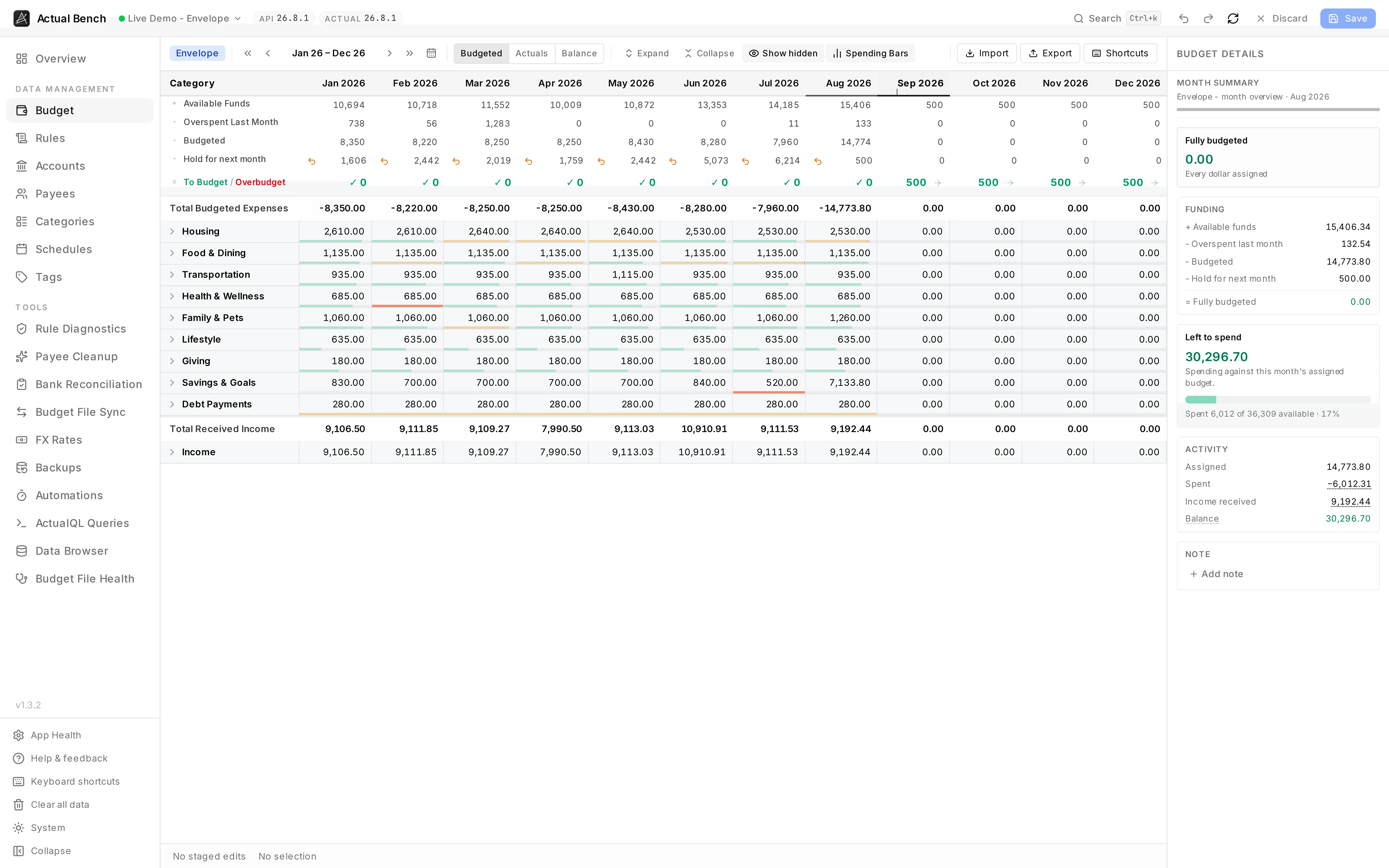
Click a month column header for the month itself: where To Budget came from, line by line, then what the month has actually done.
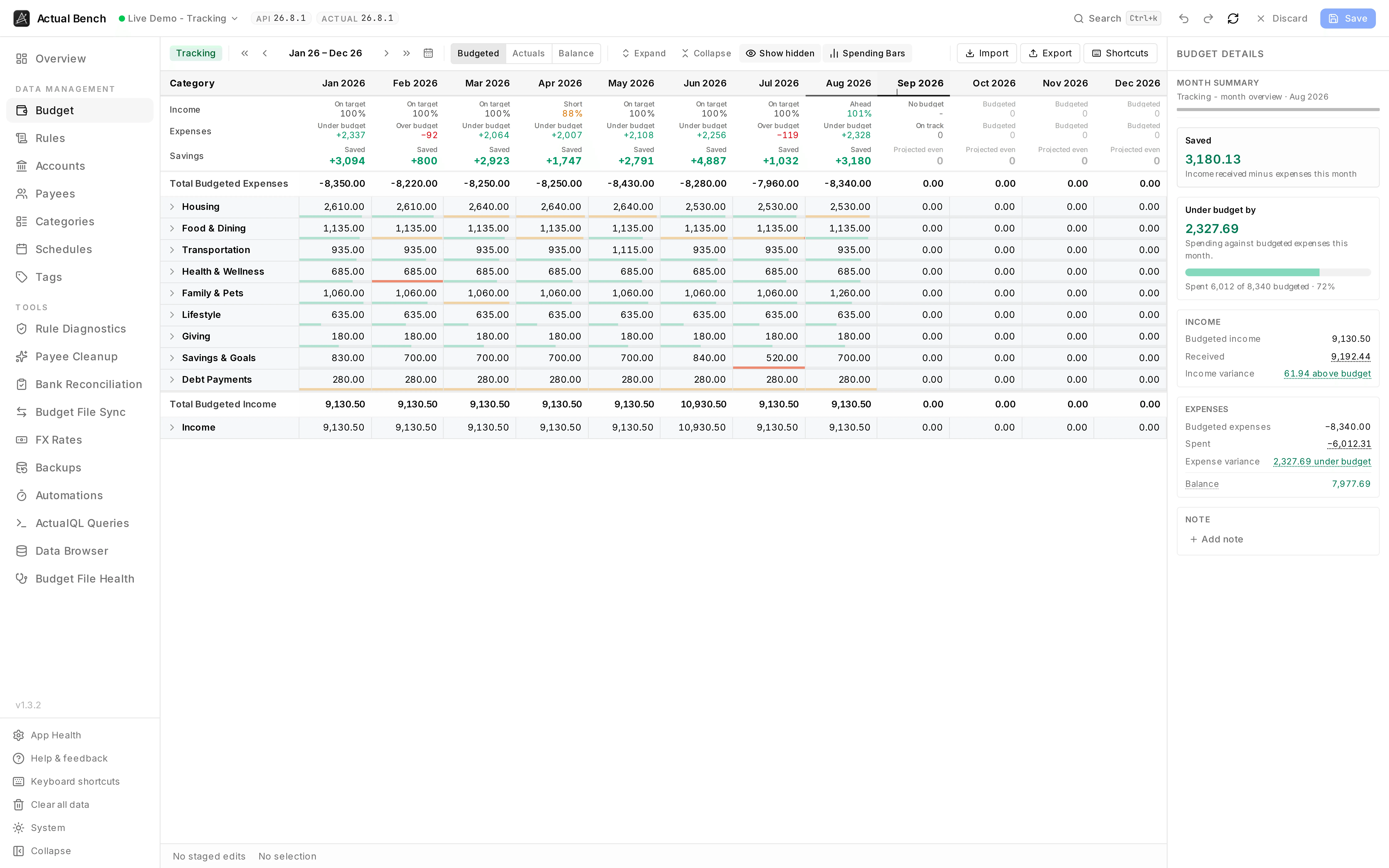
The same click on a Tracking budget reads differently - income and expenses against plan, a variance for each, and whether spending is ahead of the calendar.
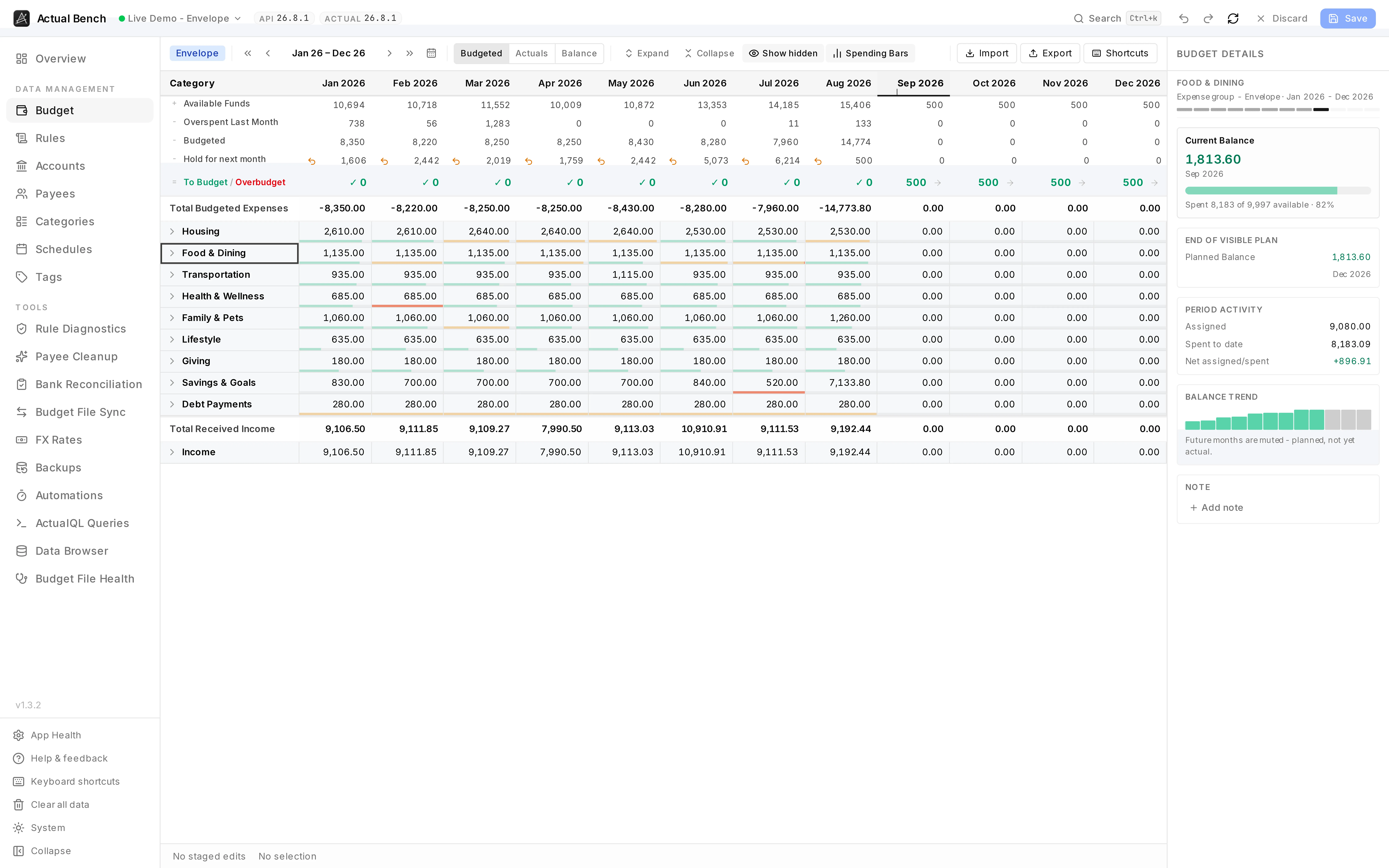
Click a group label for that group across the year - assigned, spent, and how its balance has moved month to month.
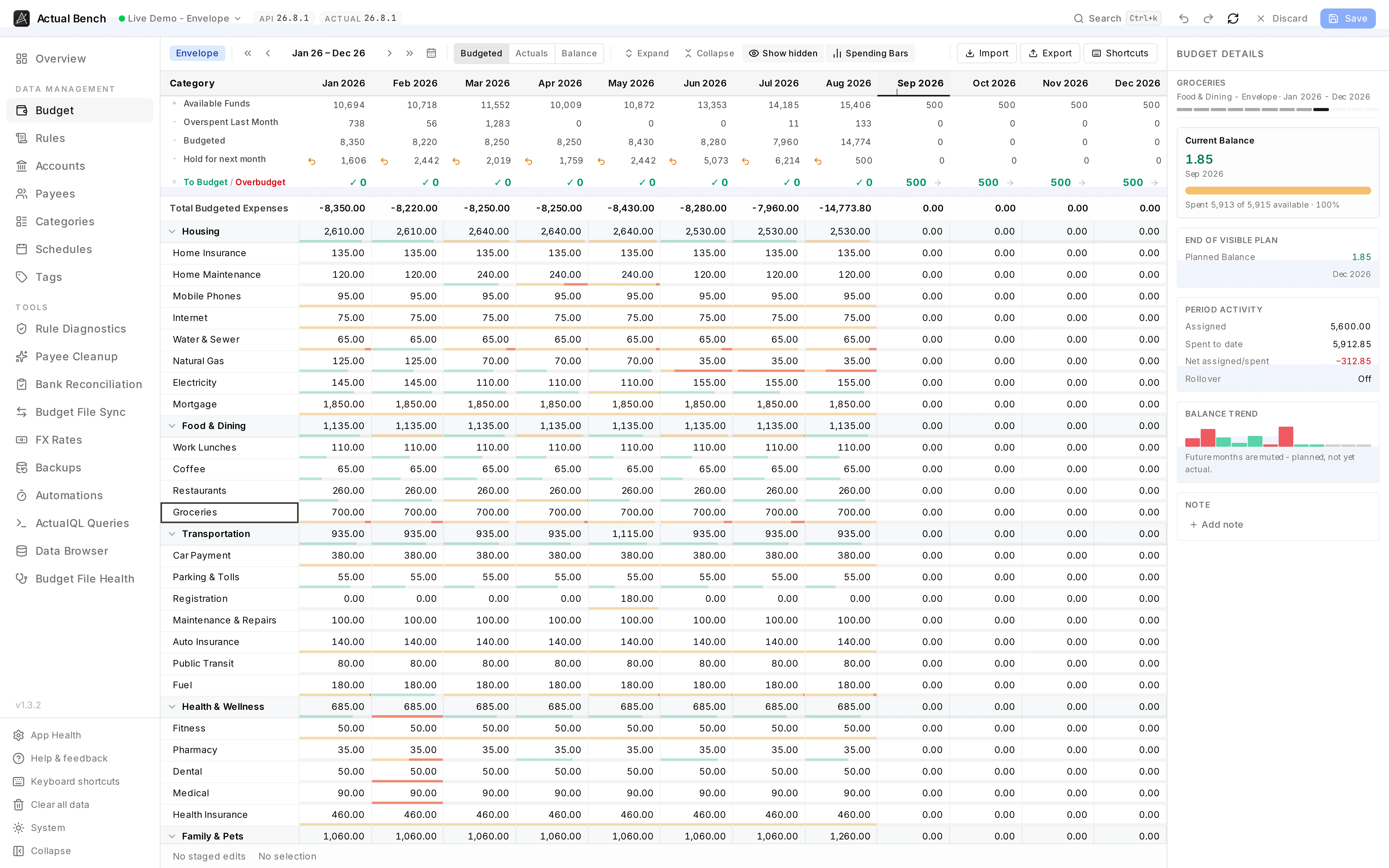
Click a category label for the same read on one category, down to whether its balance rolls over.
Two budgeting models
Section titled “Two budgeting models”Actual has two budgeting models. This page reads the badge and changes its labels, totals and details panel to match.
- Envelope budgeting hands real money to categories. What you have not handed out yet is To Budget; hand out more than you have and it reads Overbudget. Every category keeps a running Balance that rolls forward, so an unspent envelope carries and an overspent one comes out of next month. Income is only ever received, never budgeted - which is why income rows cannot be edited here.
- Tracking budgeting compares a plan with what happened. Its headline is Savings - income minus expenses - shown as Projected Savings while a month is still running and Saved or Overspent once it closes. It also keeps two numbers envelope budgeting blends together: the spreadsheet Balance, which includes carryover, and a Variance calculated on its own from this period’s budget and this period’s activity. Hidden categories drop out of tracking’s plan totals. In envelope mode they stay financially live.
The panel leads with whichever headline belongs to your model - To Budget for envelope, Savings for tracking - and never mixes them. Totals come from the budget’s own summary, so hiding categories or collapsing groups does not move them.
Choose Budget, Actuals, or Balance
Section titled “Choose Budget, Actuals, or Balance”The toolbar toggle - or the V key - changes what every cell in the grid shows:
- Budget - the budgeted amount (expenses are shown signed-negative; envelope income has no budget).
- Actuals - actual activity: spent for expenses, received for income.
- Balance - the running balance.
Labels follow the row. An income row’s activity reads Received, and in envelope mode it reads that whatever the toggle says.
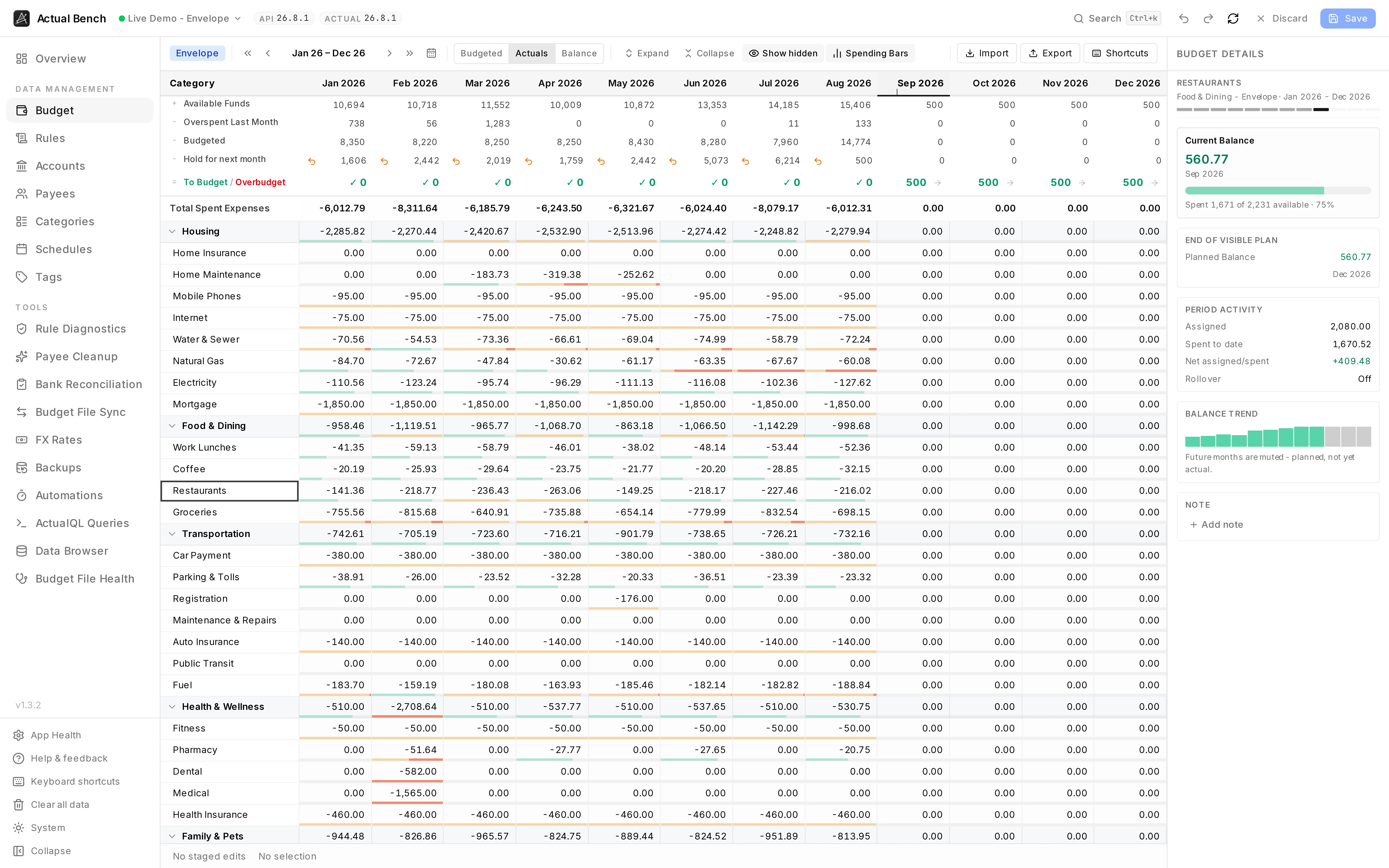
The Actuals view: what was actually spent, month by month. A category is selected here, so the panel carries its history alongside.
Use spending bars
Section titled “Use spending bars”In the Budget view a thin spending bar sits under every editable expense cell, and under every group total. It fills green as you spend, turns amber near the limit, and grows a red segment past it. Spend from a category you never funded and the whole bar is red. The exact numbers stay in the hover tooltip and the details panel - the bar is for scanning, not reading. Spending Bars in the toolbar turns them off; income rows never have one.
Navigate months and years
Section titled “Navigate months and years”- It opens on the current calendar year, scrolled to the current month and highlighting it. A marker on that column shows how far into the month you are - day 12 of 31. That matters: 80% spent on the 5th and 80% spent on the 25th are not the same news.
- The focused cell lights up its month header and category label - a crosshair on the axes - so you can tell which cell you are in without counting columns.
- Move the 12-month window back/forward by one month with
‹/›, or by a year with«/». - Use the calendar button to jump back to the current month at any time.
- Click the month range in the toolbar to jump straight to any month - pick a year, then a month, and the window starts there. A month the budget file has no data for is dimmed but still reachable, so a gap in history can be looked at.
- The
[and]keys pan the window backward/forward by one month.
Expand, collapse, and hide
Section titled “Expand, collapse, and hide”- Expand or collapse all groups with the toolbar buttons, or
E/Shift+E. - Toggle a single group with
Spaceon its label. - Which groups are collapsed is remembered while the tab is open, so leaving the page and coming back does not undo it.
- Show or hide hidden categories with the toolbar toggle, or the
Hkey.
Edit one budget cell
Section titled “Edit one budget cell”- Select a cell and press
Enter,F2, or start typing (a digit,+,-,., or(). - Type an amount or an arithmetic expression -
+,-,*,/, and parentheses are supported (for example1200/12). - Press
Enterto commit (and move down),Tabto commit sideways, orEscapeto cancel.
Staged edits show amber. Type the original value back and the edit disappears from the draft.
Delete or Backspace zeroes the focused cell.
Select multiple cells
Section titled “Select multiple cells”- Click a cell to select it;
Shift+clickor drag to extend a rectangular selection. - Extend with
Shift+Arrow,Shift+PageUp/Down, andShift+Home/End. - The first column - the category or group label - is selectable too. That is what fills the details panel with the whole row.
Copy and paste
Section titled “Copy and paste”Ctrl/Cmd+Ccopies the selection as tab-delimited text that round-trips through Excel / Google Sheets.Ctrl/Cmd+Vfills the selection from a single value, or expands a multi-cell paste from the top-left cell.
Fill values
Section titled “Fill values”With a range selected:
Ctrl/Cmd+Enter- fill the whole selection with the anchor cell’s value.Ctrl/Cmd+D- fill down.Ctrl/Cmd+R- fill right.Alt+L- fill each row with its previous-month value.Alt+Y- fill each row from the same month a year earlier.Alt+A/Alt+Shift+A/Ctrl/Cmd+Alt+A- fill each row with its 3-, 6-, or 12-month average.
Right-click bulk actions
Section titled “Right-click bulk actions”Right-click a budget cell, a category group (its month cell or its name), or a month column header. A group is a summarisation of the categories under it, so acting on one acts on all of them - and the group does not need to be expanded first. A month header acts on every category in that month, which is the quickest way to plan a whole month in one go.
The menu names what it will change and how many cells, so a group or column action is never a guess.
- Cell actions (mode-aware, cells only): in tracking mode, enable/disable rollover from that month forward; in envelope mode, Cover Overspending or Transfer to Another Category. These act on one category-month, so they are not offered for a group or a column.
- Copy from another month: Copy previous month, Copy prior year same month, Copy prior year with %… (an uplift applied to the copied amount), Copy specific month… - the picker offers every month in the budget file, not only the twelve on screen.
- Set a value: Set to zero, Set to fixed amount…, Apply % change…
- Average past budgets: 3-, 6-, or 12-month average of what was budgeted.
- Average past actuals: 3-, 6-, or 12-month average of what was actually spent or received - Use this when you want to budget from past spending instead of past budget amounts.
The result reports months, categories, and read-only cells it could not change.
Each budget-setting action stages as one undo step. Carryover is the exception - its toggle writes straight away and tells you what happened.
The preview
Section titled “The preview”Group and column actions - and anything that needs a parameter - show a preview before staging anything. An action that needs no parameter opens straight onto it.
The preview is a table of exactly what will be written: group, category, month, the current amount,
the new one, and the change. The new amounts are editable. If a 6-month average lands on 97 and
you wanted 100, type it - arithmetic like 50 * 2 works, ↑ and ↓ move between rows, Enter
commits and steps down, Esc abandons an edit. Adjusted rows are marked and can be reverted one by
one or all at once. What gets applied is what the table shows.
Totals sit under the table, split into Income and Expenses when a run covers both, because one figure spanning a spending plan and an income plan answers neither. Above a dozen rows there is a filter - it finds rows, it never changes what Apply writes, and the totals cover every row either way.
Review staged changes and Save
Section titled “Review staged changes and Save”- The details panel shows an “N changes” badge. Open it for the list, grouped by month. A transfer appears as one linked row, not two.
- Save shows a summary first - how many changes, which months, the net difference - then a progress dialog while it sends them one at a time. Both legs of a transfer post together or not at all.
- If some fail, you get Retry Failed. Only what the server accepted leaves the draft.
- Undo/redo works across staged edits (
Ctrl/Cmd+Z,Ctrl/Cmd+Shift+Z/Ctrl+Y), up to 50 steps.
Use notes
Section titled “Use notes”The details panel has a Note for whatever is selected: a category, a group, a single category × month cell, or a whole month.
Envelope budget actions
Section titled “Envelope budget actions”- Hold for next month - every To Budget cell shows what is being held. The toggle opens a dialog to stage a hold or clear one. Holds save with everything else.
- Cover Overspending / Transfer to Another Category - move money between categories. Both legs are one undo step, and they post together.
Holds and transfers are envelope-mode only.
Tracking budget behavior
Section titled “Tracking budget behavior”Look at the transactions behind a figure
Section titled “Look at the transactions behind a figure”Spent and Income received in a month summary are links. Click either one for the transactions that produced it, plus where the money went and when during the month it left.
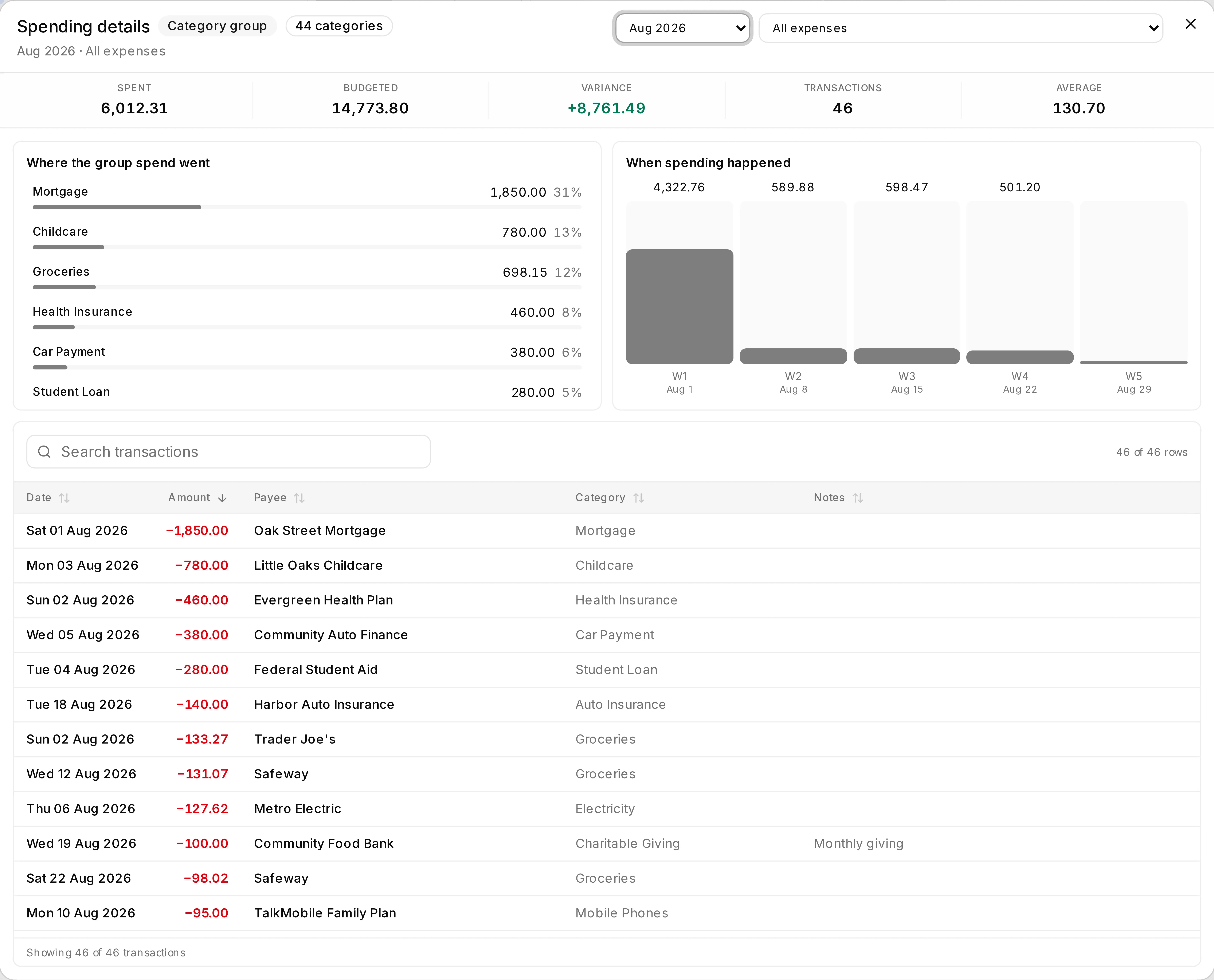
Forty-six transactions, what share each category took, and which week they landed in. Search and sort it like any other table.
See what moved a month off plan
Section titled “See what moved a month off plan”On a Tracking budget, the month summary tells you how far off plan a month is. Variance Drivers tells you what did it. Click either variance figure to open it. Category groups come back ranked by how much of the gap each one accounts for, expandable to the categories underneath, and filterable to just the over-budget or just the under-budget side.
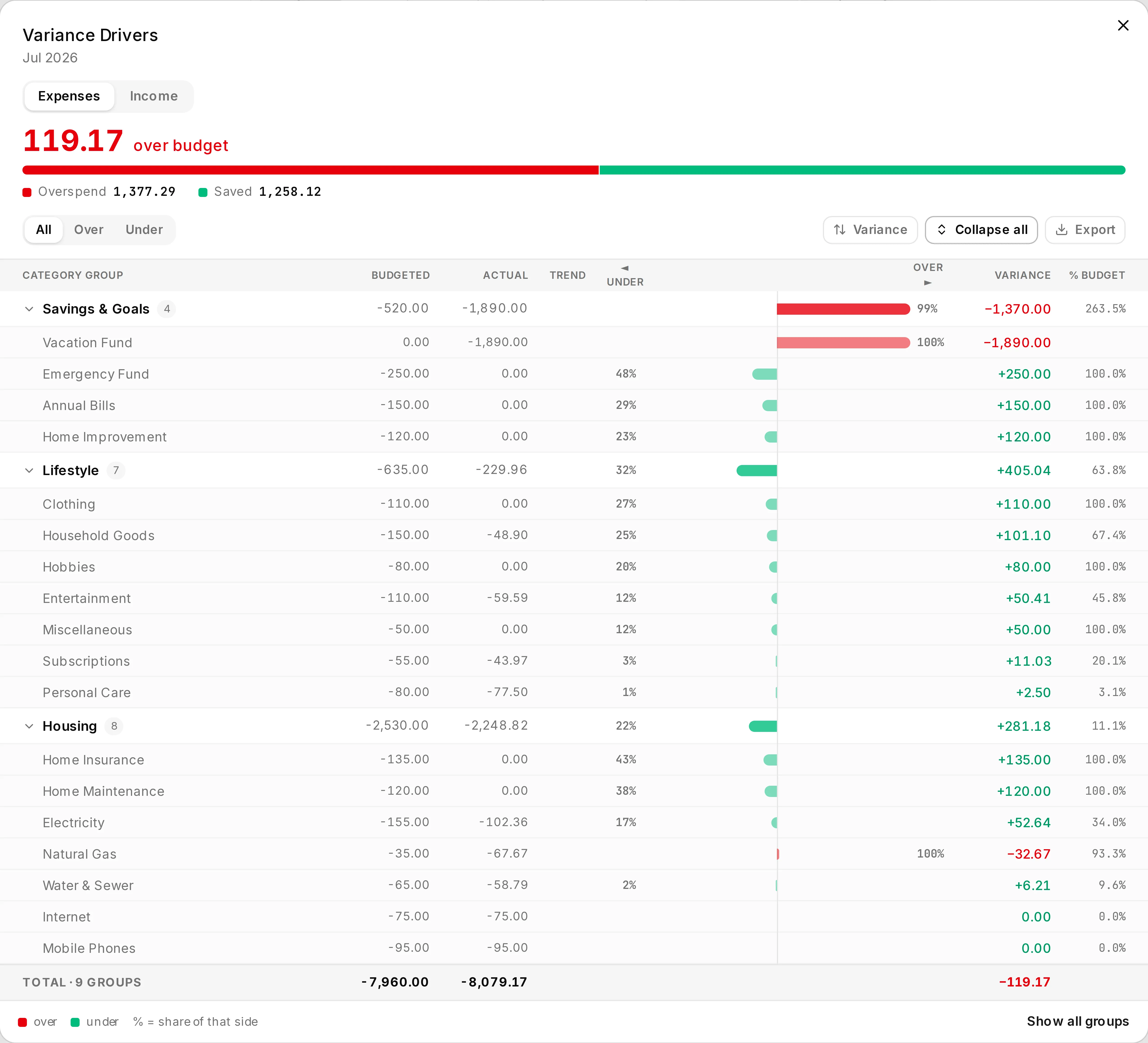
Groups ranked by their share of the variance, expanded to the categories underneath. Export takes the same breakdown to CSV.
This one is Tracking-only. Envelope budgets have no plan to vary from - their equivalent question is answered by the balance and the spending bars.
Tracking mode speaks in plans, not envelopes. Closed months report what happened, the current month is flagged as partial, and future months show what is budgeted rather than a misleading zero. Rollover is per category, from the right-click menu, and writes immediately - it is not part of the cell draft.
Import and export
Section titled “Import and export”- Export lets you choose months by quick range, date range, or by hand, and whether to include hidden categories, income groups and staged values. There is a blank template too. Files are UTF-8 CSV with a BOM, so Excel opens them without mangling anything.
- Import reads a CSV and sorts every row into exact, suggested or unmatched. You see before and after values, and the whole import stages as one undo step. Category names that are nearly right get suggestions; months outside the window can extend it.
Keyboard shortcuts
Section titled “Keyboard shortcuts”Press ? - or F1, Ctrl/Cmd+/, or the toolbar Shortcuts button - for the full list, generated
from the app’s own keymap. The bare-letter ones (V, F, H, E, [, ]) stay quiet while you are
typing in a cell.
Safety and limitations
Section titled “Safety and limitations”- Rollover writes immediately, from the right-click menu, in tracking mode. It is not a staged edit.
- Transfers need a source and a destination. You cannot move money to or from the pool.
- The grid is not virtualised. A very long category list will scroll slowly.
Troubleshooting
Section titled “Troubleshooting”- Paste did nothing - select a cell first. Paste fills from the top-left of the selection.
- A number is missing - check the cell-view toggle, and whether that month is inside the visible twelve.
- A category is missing - it is probably hidden. Press
H. - Changes did not save - the failed cells are still staged, marked red. Retry Failed.
- A note will not discard - notes were saved the moment you wrote them. Discard cannot reach them.
Related pages
Section titled “Related pages”- Core Concepts
- Categories - budget the categories you manage there