
Bank Reconciliation
Use Bank Reconciliation to compare a downloaded bank statement with one Actual account. Use it to audit a period or resolve missing, duplicate, or incorrect transactions. It does not replace normal transaction entry or bank sync.
Open it from Tools → Bank Reconciliation (/reconciliation).
Budget impact: Your decisions stay in the session until you Apply. Bank Reconciliation does not directly change transaction categories. A transformation can use an existing category as a condition, but it does not modify that category. Actual rules can categorize new transactions when they are created.
Before you start
Section titled “Before you start”You need a statement file and the Actual account to compare it with. Supported files are CSV, TSV,
OFX, QFX, QIF, and text-based PDF statements. OFX and QIF are detected from their contents, so an
OFX export saved as .txt still imports as OFX.
Each session covers one account. It is stored in Actual Bench, so you can close the tab and return later. No bank connection, bank credentials, or separate setup is required.
The workflow
Section titled “The workflow”- Start a session and select the Actual account. Add a tag if it will help you find the session later.
- Import the statement. For CSV or TSV, confirm the date, amount, payee, and notes columns. For a PDF, review and correct the extracted transactions before importing them.
- Review automatic matches and decide what to do with every difference.
- Check the planned changes on Review.
- Select Apply to write the approved changes. Actual Bench checks affected transactions again before it writes.

Open a session to continue where you left off. Tags, account, date, and status filters help you find it. An applied session remains available as an audit record.
Start and import
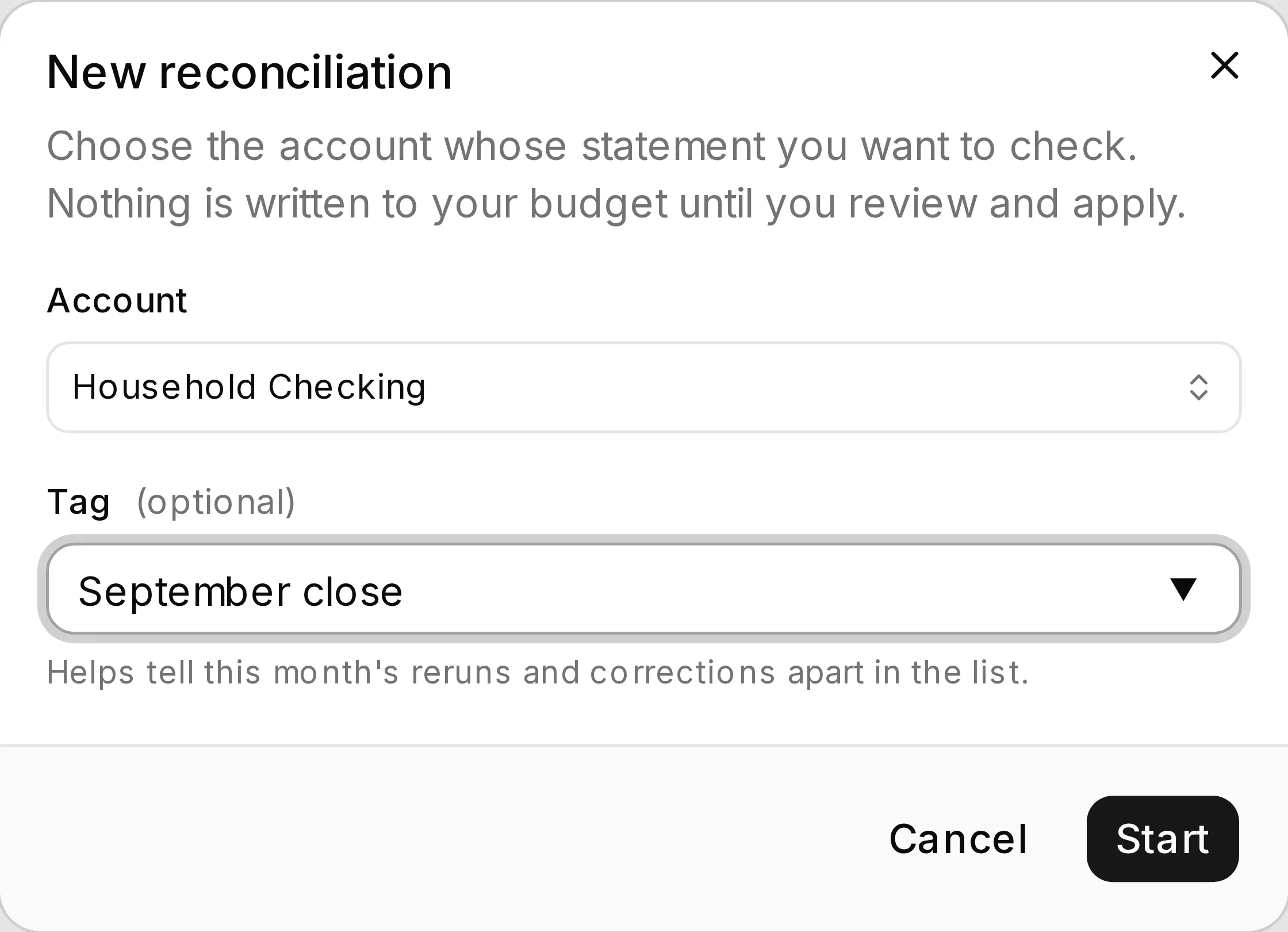
Section titled “Start and import”Select New reconciliation, choose the account, and optionally add a tag such as July close or
after the refund. This tag labels the reconciliation session only; it does not add a tag to budget
transactions. You cannot change the account after the session starts.
Paste a statement or upload a file. The import screen shows the parsed rows before you continue. For CSV and TSV files, correct the mapping if needed. For example, map separate debit and credit columns when the bank does not supply one signed amount column. Check the date format and sign convention before matching.
Import a PDF statement
Section titled “Import a PDF statement”Select a PDF to read it in your browser. Actual Bench uses PDF.js locally. It does not upload or store the PDF. If the file has a password, enter it when prompted; the password remains in memory only.
The workbench has two steps, Check detection and Review transactions. It opens on review when the initial result is mostly usable, and on detection when more than half of the proposed transactions are rejected or a saved layout needs checking. The bar above both steps summarizes the statement: its transaction count and date range, a track showing how the rows divide into Ready, Review, and Fix with each part named beside its colour, the money in and out, the net, and how many pages held transactions. The track is a composition, so it shows progress as rows are resolved rather than only naming the worst problem left.
Select Use transactions only after every row is ready. The rows then use the same import preview, matching, review, and Apply steps as other statement formats. Select Review PDF import on the import page to reopen the workbench before continuing.
Check detection
Section titled “Check detection”This step shows the positioned PDF text, transaction areas, and column boundaries, each mapped column in its own colour with a role label and examples taken from inside its current boundary. Include or ignore an area, select a missed one, change a column role, or drag its boundaries.
The panel beside the page holds everything that decides how the statement is read: the Statement layout in use, Statement interpretation for the account type, currency, statement period, date or number format, import date, printed sign and unsigned amount direction, and the column mapping. What still needs attention is listed above those settings, and where one setting answers the question - an unresolved money-in or money-out rule, or a missing currency - Fix this opens that control with the cursor in it.
The mapping list is always in the order the statement prints its columns, left to right, so it never disagrees with the page. Drag a column’s label to move the whole column, or its edges to change one boundary; the arrow keys do the same from the keyboard. The + on a mapping adds a column between it and the one to its right, for a column the detection missed, and the up and down arrows swap a mapping with its neighbour, moving it left or right on the page.
Preview updated transactions compares the current result with the proposed one: how many transactions there would be, how many are ready to import, and how the net change moves, each with the difference stated. Underneath it summarizes the row changes - added, removed, amounts, dates, descriptions - and warns when a change would leave transactions unreadable. Apply changes and review then reuses the extracted file and preserves your row corrections.
Review transactions
Section titled “Review transactions”This step shows the extracted rows. Negative amounts are money out and positive amounts are money in. Edit a date, description, or amount directly. Select the sign to reverse one row, or select several rows to set their direction, mark valid warnings as reviewed, merge them, or ignore them. Actions for selected rows appear in the fixed footer.
Each row is Ready, Review, or Fix. Ready can continue, Review needs confirmation, and Fix is missing a required value. A row that is not ready states underneath its description the most serious thing it is waiting on, so a repeated reason can be spotted down the column. A status with a chevron opens the row’s full notes, on hover or selection, separating what needs attention from how a value was read; ready rows carry the second part only. Select a field’s eye icon to see its source text in the PDF. Select Mark reviewed only after checking a row against the statement. Correcting a required field removes that error as soon as the row is valid, and a row cannot be marked reviewed while a required field is still invalid.
Use All, Needs review, and Ready above the table to change the view; Needs review shows non-empty structural, date, amount, direction, balance, reconciliation, and duplicate filters. Direct edits change one row, and after an eligible edit the footer can offer the same correction to a stated number of similar rows or all remaining rows. Marking several selected rows reviewed at once first names the warnings that action would accept without resolving, such as possible duplicates or a balance that does not reconcile.
Possible duplicates remain included: mark both reviewed when they are separate transactions, or ignore the repeated row. Ignored rows can be restored from Check detection. A dated row inside a transaction table stays available for correction even when its amount cannot be read.
Export, beside the search box, saves the transactions to CSV exactly as the table shows them - the same rows in the same order, with the corrections made so far, each row’s status, and any outstanding notes. A filtered or searched view exports what is on screen.
The PDF viewer
Section titled “The PDF viewer”The viewer opens at 80%, which keeps a full statement page in view. Its +, −, and fit-width controls stack down the left of the page and zoom between 60% and 160%; with the page focused, +, -, and 0 do the same. Paging sits above the viewer, and a statement of more than five pages replaces the page label with a box you can type a page number into. The zoom level is kept as you move between pages and workbench sections. Selecting a field’s eye icon opens the page containing its source and scrolls to the highlighted text. In Check detection, the columns button under the zoom controls shows or hides the mappings drawn over the page and stays lit while they are shown; selecting a mapping centers that column in the viewer.
Statement layouts
Section titled “Statement layouts”A layout stores how to read a bank’s table and nothing about any one statement: column roles as fractions of the page width, the date, number and amount-direction settings, and the masked shape of the table’s header row. It does not store the statement period, the transaction areas, the PDF, or transaction text - a period moves every month, and areas are numbered by page, which shifts as soon as a statement runs longer. Recognition is by the table’s header, so correcting a layout’s mapping never makes it harder to recognize next month.
Layouts are grouped by bank and shared across budgets and accounts, so HSBC Bank can have separate Credit card and Checking layouts. The bank name organizes the list; Actual does not identify which bank owns an account. Selecting a layout applies it to the current statement only; select Use for the account to save that assignment.
An assigned layout is applied to that account’s statements. Where the statement’s table has drifted from the saved one it is still applied and the difference is stated, because a layout withheld leaves you mapping the statement by hand for reasons you cannot see; it is held back only when its columns conflict with the table in front of it. A layout carrying amount-direction settings says so when it is applied, so you can confirm those against the statement.
To save one, apply the detection changes and select Save layout, either in the Statement layout panel or on the confirmation that follows. Enter the bank and layout names, and assign it to the account if you want it used automatically. Layouts are not versioned, so a name that is already taken asks whether to replace that layout’s settings or keep it and save under a different name, and a layout can only be saved when it has no rejected transactions. Select Manage to change an assignment, rename a bank or layout, or delete one; removing an assignment returns the account to automatic detection.
When the settings in force no longer match the layout they came from, a Layout not saved control appears in the workbench header and opens the save dialog. It counts only changes a layout can hold - column mappings and the reading settings - so adjusting a transaction area, which belongs to one statement, does not ask to be saved.
How the statement is read
Section titled “How the statement is read”The parser has no bank-specific templates. It reads the statement’s own structure, and anything it cannot settle from the statement stays in review rather than being guessed at.
Columns and rows. Automatic mapping identifies the transaction table first, using the table’s printed header where there is one, so account details, credit limits, payment summaries, balances, and totals elsewhere on the page do not create mappings. An uncertain role stays unmapped for you to set. Where extraction returns several values as one piece of text (two dates and a description, say) the words are divided between the columns that cover them, so each column reports its own value.
A valid date in the mapped date column starts a transaction, and the lines above it join the transaction they belong to rather than the one they sit nearest: a description printed above its own date stays with it, and a fee, VAT, original-amount, or total line stays with the transaction it belongs to unless its own amount and balance show it moved the account. Where a statement prints a date once for several transactions, the later rows inherit it and are marked for review. Only running balances are used for reconciliation; available and periodic balances are not ledger movements.
Dates. A date cell takes whatever the statement prints - 15 Jun 19, 15/06/2019, 2019-06-15 -
reads it through the Date format setting, and stores the date it means; a value it cannot read
stays on screen and is marked. Unambiguous dates establish whether the rest use day/month or
month/day order, and the statement period supplies missing years across December and January.
Transaction date is the default import date, marked by the check in its column header. Posting and
value dates are optional and stay separate; removing one of their mappings stops it being validated.
Amounts and direction. The parser reads signed, parenthesized, and trailing-minus amounts,
mixed-case DR and CR markers, separate debit and credit columns, explicit debit and credit
sections, and one Amount column where a suffix such as 113.61CR marks money in. Common US,
European, space-grouped, Indian, Swiss, Arabic-digit, and East Asian number layouts are supported.
Money in and money out are never guessed from the account type alone. Printed directions decide first. Where a statement prints no direction at all, a running balance can supply one, but only once the parser knows which way that balance moves - from printed directions that already agree with it, or from an account type you have confirmed. A heading that is ambiguous, or that disagrees with the printed directions, leaves the balance column unused and those rows unresolved.
Printed sign means states whose side the printed sign takes: a bank account prints a minus for money out, while a card or loan issuer prints a minus for a payment that reduces what is owed. Until that convention is confirmed on a card or loan statement, rows that take their direction from a printed sign stay in review. The account type behind it is read from the statement heading, never from transaction descriptions, so a checking statement that pays a credit card is not classified by those payments; a type read from the heading alone resolves directions but keeps them in review until you confirm it in Statement interpretation.
Currency and precision. The amount column states the statement’s currency in its header, and when it cannot be read it is asked for once in Statement interpretation rather than on every row. Currency is a statement-level reading: Actual holds one currency per budget file and the import carries no currency code, so what it decides here is how many decimal places an amount may have. A row printing a different currency is flagged, because it usually means the original amount was read instead of the amount charged to the account. Actual transactions use two decimal places, and import is blocked when converting would lose a meaningful digit, so correct the amount to the value that should be stored in Actual.
Parser details, warnings, and limits
Section titled “Parser details, warnings, and limits”Select Parser details for how the statement was read - the account type, currency, date and number formats, which date is imported, how unmarked amounts and printed signs were treated, what the balance column was taken to mean, and which pages held transactions - each labelled with where it came from: the parser’s own reading, your setting, or a saved layout. Underneath, the reasons rows are not ready are counted, and selecting one shows those rows. It also holds saved-layout validation and technical diagnostics, which contain aggregate events, counts, and page numbers, not statement text or source IDs. The panel opens beside the workbench rather than replacing it. Parsing warnings are not kept here; they appear in What needs attention, beside the settings that answer them.
A page that has no readable text layer, or that could not be read at all, is reported above the transaction table, and import stays disabled until you confirm that you checked those pages: their transactions are missing from the statement. Selecting I checked these pages dismisses the message and leaves a marker in the toolbar that brings it back. Rows inside a transaction area that did not become a transaction are counted the same way, so you can mark them in Check detection instead of losing them silently.
Scanned or image-only PDFs have no usable text layer, and OCR is not included. A damaged page is reported instead of being silently ignored. Large files are limited by file size, page count, text item count, and processing time so they cannot keep the browser busy indefinitely. Use CSV, OFX, QFX, or QIF when the bank can provide a structured export.
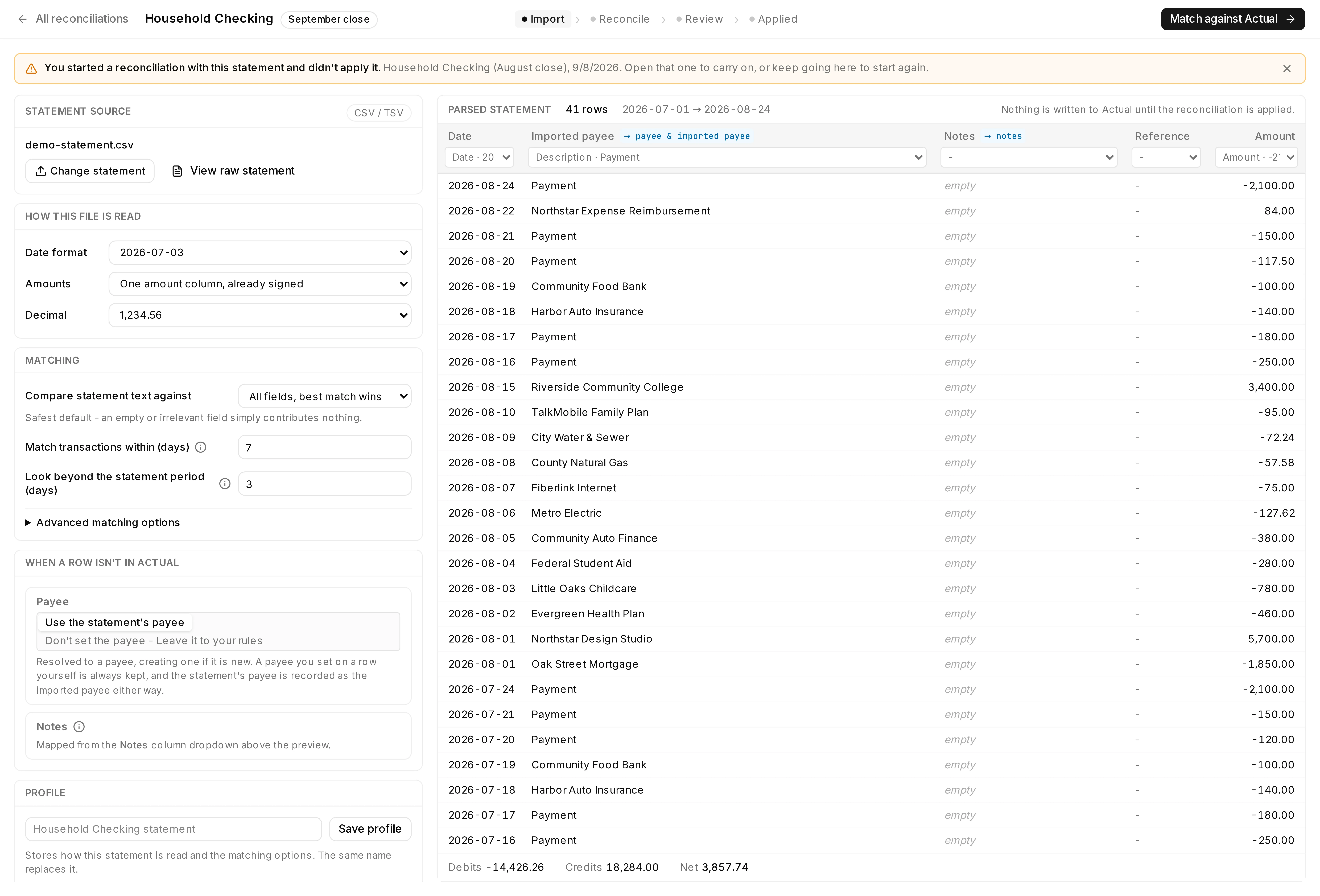
Choose how missing rows are created
Section titled “Choose how missing rows are created”Choose how transactions that are missing from Actual should be created:
- Use the statement payee, which resolves or creates an Actual payee; or leave the payee for Actual rules to set.
- Keep the bank memo, the statement payee, both, or neither in notes. For CSV and TSV, the mapped Notes column is the source of notes.
You can change these options later in Re-run → When a row isn’t in Actual. Notes you edited or changed with a transformation keep their staged value; the new choice affects only untouched rows.
The two text channels
Section titled “The two text channels”The statement payee and memo are separate fields. The statement payee is recorded as Actual’s imported payee. The memo is a source for notes on new transactions; whether it is written depends on your new-row choices. For CSV and TSV, the mapped Notes column is the notes source instead. This preserves the bank’s original text while leaving your curated Actual payee and category intact.
This distinction matters: Imported payee records what the bank called the transaction, while Notes records its extra text. The imported payee can be used to resolve an Actual payee, but it does not replace your curated payee.
If you import the same statement again, Actual Bench warns you and identifies the earlier session. You can still continue. Re-importing can be useful after a partial apply or after correcting a column mapping; matching always compares the statement with the current state of Actual.
Reconciliation profiles
Section titled “Reconciliation profiles”For CSV and other structured files, save an account-specific reconciliation profile to keep the column mapping, date and amount conventions, payee and memo choices, and matching options. PDF statement layouts are separate: they are global, grouped by bank, and configured in Check detection as described above.
Import details
Section titled “Import details”For CSV and TSV, Actual Bench detects delimiters from a consistent column layout, recognises header rows, and suggests a column mapping. The date column is required. You can leave the description column unmapped when it is really a memo; in that case no imported payee is recorded and matching uses notes instead.
For OFX, QFX, and QIF, the format supplies the field structure. You can use a memo as a fallback when a payee is empty, or swap a bank’s payee and memo fields when it put them in the wrong places. When a memo is used as the fallback payee, it is not also available as notes for that row. QIF and CSV dates may be ambiguous. Check the preview and select the intended date convention before you continue.
OFX transaction IDs (FITID) are stored as statement metadata and can support matching. They are
not written to Actual’s imported_id; Actual Bench uses its own deterministic marker to make retries
safe.
| Statement field | Actual field | Purpose |
|---|---|---|
Merchant, description, NAME, or P | Imported payee | The bank’s merchant text and a candidate for payee resolution |
Memo, details, or MEMO / M | Notes | The bank’s extra transaction text |
Match and decide
Section titled “Match and decide”Automatic matching requires an exact signed amount. Dates and text rank candidates with the same amount; they do not create a match by themselves. If the statement uses positive numbers for spending, correct the sign convention. Re-run inverted is offered only when no rows matched and reversing the signs would explain the mismatch.
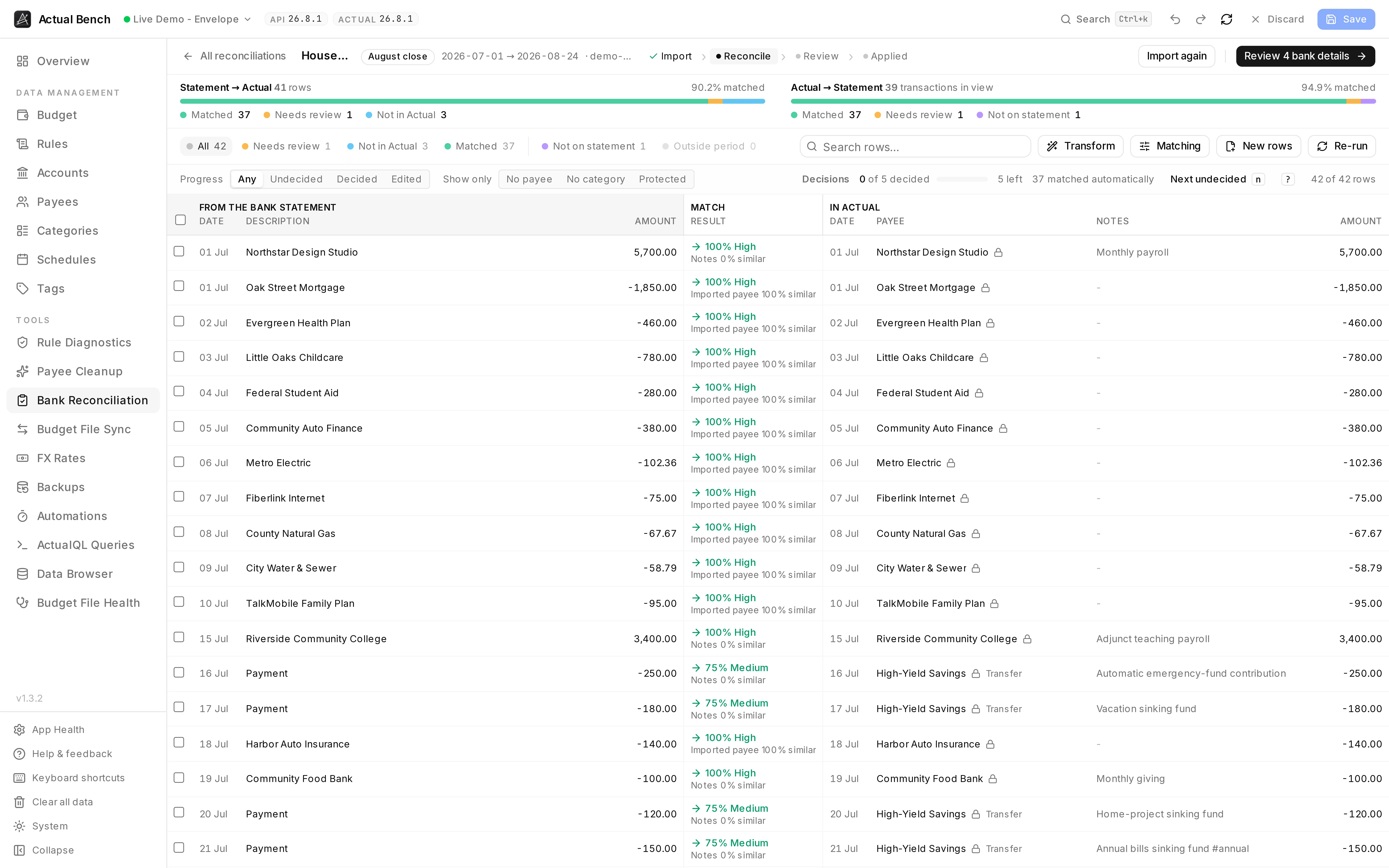
Use the workbench to review matches, find rows that need attention, and make decisions.
Choose what the text is compared against
Section titled “Choose what the text is compared against”Under Matching, choose where Actual keeps merchant text: Payee, Imported payee, Notes, or All, best match. The statement payee is compared, with the memo used only when the bank did not provide a payee. Payee and imported-payee comparisons use name similarity; notes use containment so the bank text can sit within a longer note.
Best match compares every enabled field and uses the strongest result. Priority first checks fields in your chosen order and uses the first one that reaches the threshold. You can set priorities and weights in Advanced matching. Settings are saved in the reconciliation profile and take effect only when you select Re-run.
For each difference, you can:
- accept the suggested match or select another candidate;
- say two rows are not the same transaction;
- create a transaction that is missing from Actual;
- delete a duplicate transaction;
- correct an existing amount;
- keep an existing transaction that is not on the statement; or
- leave the row undecided. Apply does not change undecided rows.
When amounts disagree
Section titled “When amounts disagree”When a matched amount differs from the statement, accepting the pairing stages the statement amount on the existing transaction. Actual Bench will not change the amount of a reconciled transaction, a split parent, or one leg of a transfer. You can still record the match, but Review reports the remaining difference. When allowed, the correction updates the same transaction rather than replacing it, so its ID, payee, notes, category, schedule, and transfer link remain.
If the two rows are different transactions, choose Not the same transaction. The statement row then remains available to create, and the Actual transaction remains available to keep or delete.
You can continue to Review with unresolved rows. Apply does not create an unresolved statement row or change an unresolved Actual transaction.
Transactions outside the statement period are loaded to help match rows near the start and end of the period. They start as kept and are not included in the decision count. You can still choose to delete one if that is appropriate.
When no automatic match works
Section titled “When no automatic match works”Rows that are too ambiguous are not matched automatically. Use Possible pair to review a likely pair, or select two rows yourself and confirm that they are the same transaction. This also stages the statement amount on the selected Actual transaction.
Possible pairs are review hints, not automatic candidates. They can have different amounts, so they require an explicit confirmation and never lower the automatic-match threshold.
The workbench shows statement coverage and Actual-account coverage separately. It also keeps rows outside the statement period visible, because they can explain a match near the date boundary. They are kept by default and do not count as undecided work.
Transform transactions
Section titled “Transform transactions”Use transformations to preview and stage a payee change or note changes across several rows. Set a payee, or use note actions to add, remove, move, or replace tags and text. Conditions can use a payee, category, or tag. Transformations do not write any change until Apply, and do not overwrite a hand-edited value unless you choose to do so.
For text, you can prepend, append, or replace an exact value. You can also extend a merchant name in an existing note to the longer statement description. If Actual Bench cannot identify the bank text inside the note, it leaves that row unchanged and explains why.
When a row has several candidates, select the candidate before you correct, delete, or match it. Actual Bench protects reconciled transactions, split parents, and transfer legs from changes that would make the budget inconsistent. It explains the restriction and leaves the row available for a safe decision.
See How Matching Works for match scoring, text targets, safeguards, foreign-currency matching, and every matching setting.
Review the plan
Section titled “Review the plan”Select Review when you have finished deciding rows. If possible pairs or undecided rows remain, Actual Bench warns you first. In particular, an undecided statement row is a bank transaction that will not be added to your budget if you apply; an undecided Actual-only row is left alone. You can return to the workbench or continue to Review.
The Review page lists each planned create, update, delete, and imported-payee write, plus the effect on the account balance.
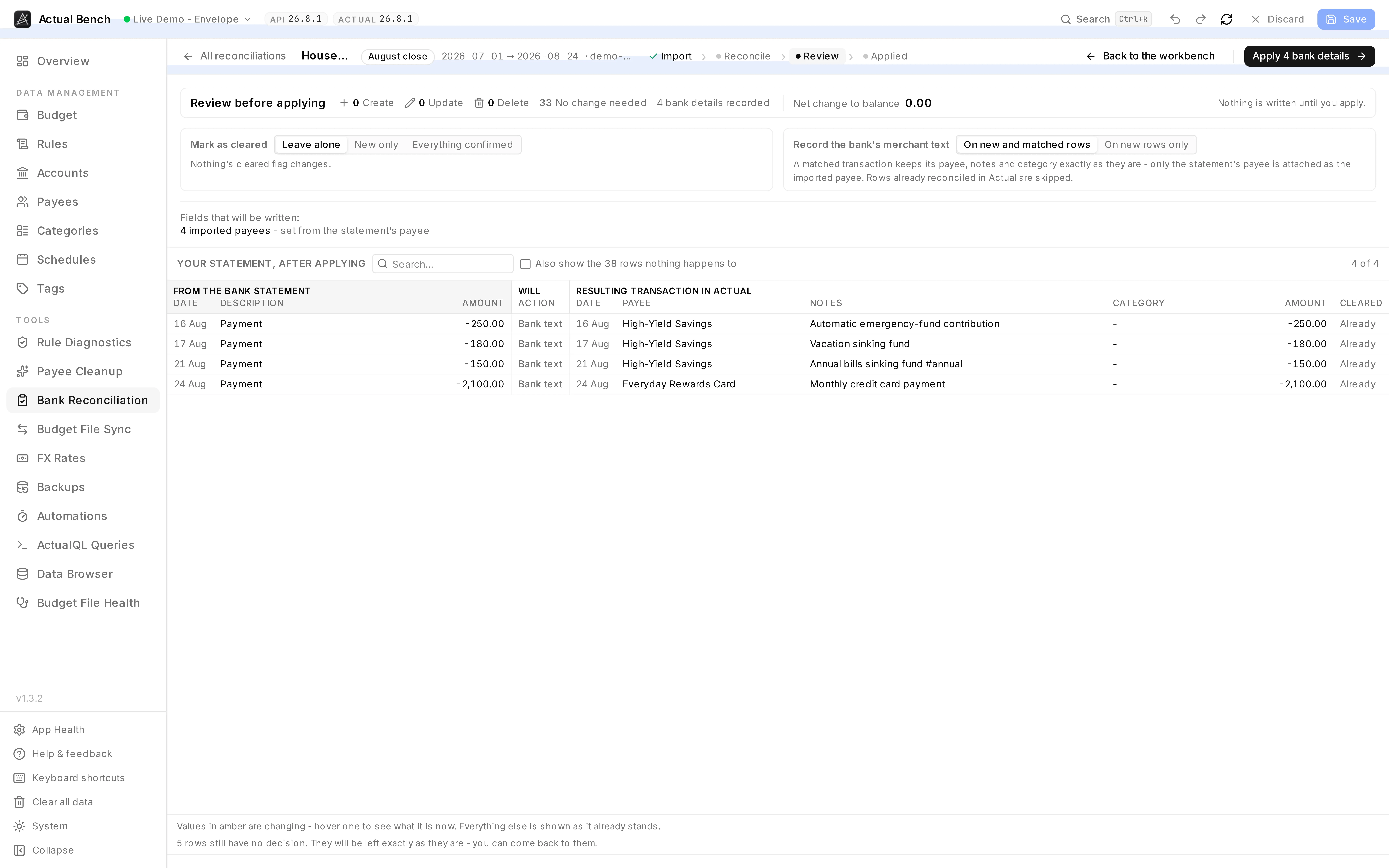
Check these choices before you apply:
- Mark as cleared: leave transactions unchanged, mark only new transactions cleared, or mark every statement-confirmed transaction cleared. The last option also writes the cleared status to matched transactions that otherwise need no update.
- Record the statement’s payee: add the bank’s payee text to new rows only, or to matching rows
as well. This changes
imported_payee, not the curated payee, notes, or category.
New transactions always record the statement payee when the statement provides one. Their payee and notes follow the options you set during Import.
Matched transactions keep their existing payee and notes unless you explicitly stage a transformation or another reviewed edit. Bank Reconciliation does not directly change categories: matched transactions keep their category, while Actual rules can set the payee or category of new transactions.
Transactions already reconciled in Actual are skipped. A matched transaction also needs no imported-payee write when it already has the same bank text.
What actually gets written
Section titled “What actually gets written”| Field | On a new transaction | On a matched transaction |
|---|---|---|
| Imported payee | The statement payee, when present | Written only when Record the statement’s payee includes matched rows |
| Payee | Resolved from the statement, or set by Actual rules | Kept unless you stage a payee change |
| Notes | Follow the Import choice | Kept unless you stage a note change |
| Category | Set only by Actual rules | Kept as it is |
The Review page identifies imported-payee writes separately from curated-data changes. It also shows the previous value when an existing imported payee would be replaced.
Apply safely
Section titled “Apply safely”Select Apply only after reviewing the plan. Immediately before writing, Actual Bench re-reads every affected transaction. It writes rows that are still safe and holds back conflicts or changes it cannot combine safely.
For example, it preserves an amount or date corrected in Actual after the session began, and tries to replay a staged note change onto a newer note. If it cannot do that safely, it reports the row instead of overwriting it.
Applied creates use deterministic markers. Retrying a partial run does not create the same transaction twice. The result identifies successful, skipped, and failed actions, and Retry what failed attempts only unfinished work. After writing, Actual Bench reads the account again to verify the result.
An applied session cannot be re-matched because it is an audit record of its decisions and writes. Its Review page remains readable, but its write choices are locked to the options that were used. To reconcile the account again, start a new session.
Sessions and limits
Section titled “Sessions and limits”The session list shows one row per reconciliation: the account, its tag, the statement’s format and file name, the period, the number of statement rows, and where it has got to. Group by account gathers an account’s sessions under one heading, and is off by default because most accounts have a single session. Opening a session goes to the step its work is at - a draft opens on Import, an applied one on its result, and everything else on the workbench.
The Year filter starts on the current year when there are sessions in it; Clear filters widens it back out. A statement period that runs across a year answers to both, so a December-to-January cycle is found under either.
Sessions are stored in the Actual Bench metadata database on the server, not in the budget file. They contain the imported statement rows, your decisions, matching options, and apply result. Statement contents therefore leave your browser and remain in Actual Bench metadata until you delete the session. Delete a session from the session list when you no longer need it; deletion removes that session data only and never changes your budget. Applied changes remain applied.
Bank Reconciliation has these limits:
- One account per session.
- Split children are read-only. A split transaction can be matched, but its individual lines cannot be edited here.
- Automatic matches require an exact signed amount. Amount differences and ambiguous pairs require review.
- Manually linking rows is limited to transactions loaded for the session’s date range.
Related pages
Section titled “Related pages”- How Matching Works — matching algorithm and configuration
- Bank Sync — run Actual’s existing bank sync on a schedule