Budget File Sync
Use Budget File Sync when you need to copy selected transactions, payees, or categories from one budget file to another. Each saved one-way flow previews its changes before it writes.
It copies between independent budget files; it does not merge them into one live database.
Flows keep mappings and run history. Items that need a decision remain in the review queue.
Open it from Tools → Budget File Sync (/sync).
Budget impact: Preview never writes. Only an explicit Apply, or an opted-in safe-only automation policy, writes classified safe items. Uncertain rows remain for review.
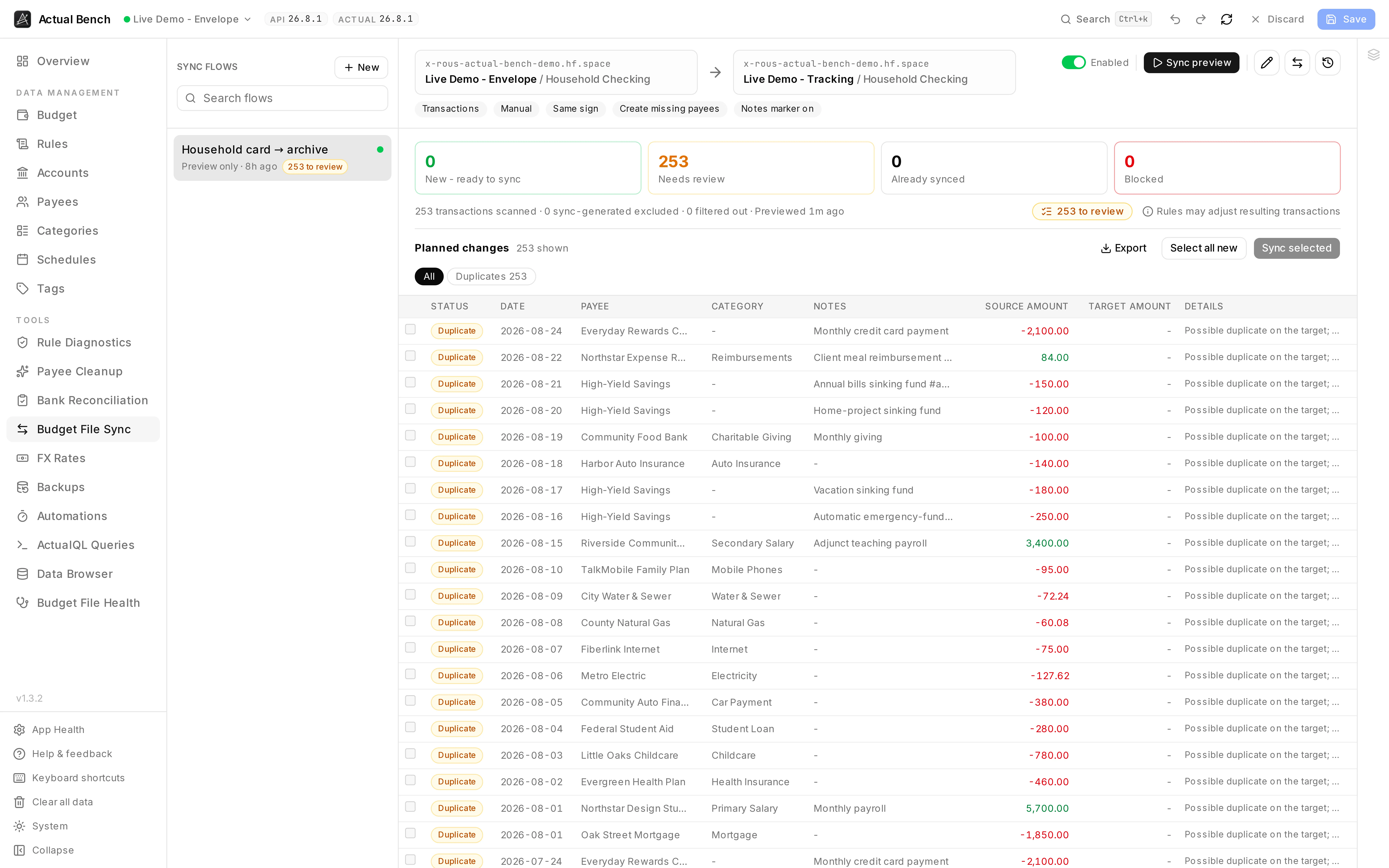
A preview classifies every row and writes nothing. Here the two demo budgets already hold the same household, so all 244 rows come back as duplicates and go to review rather than being copied again - which is the behaviour the preview exists to produce.
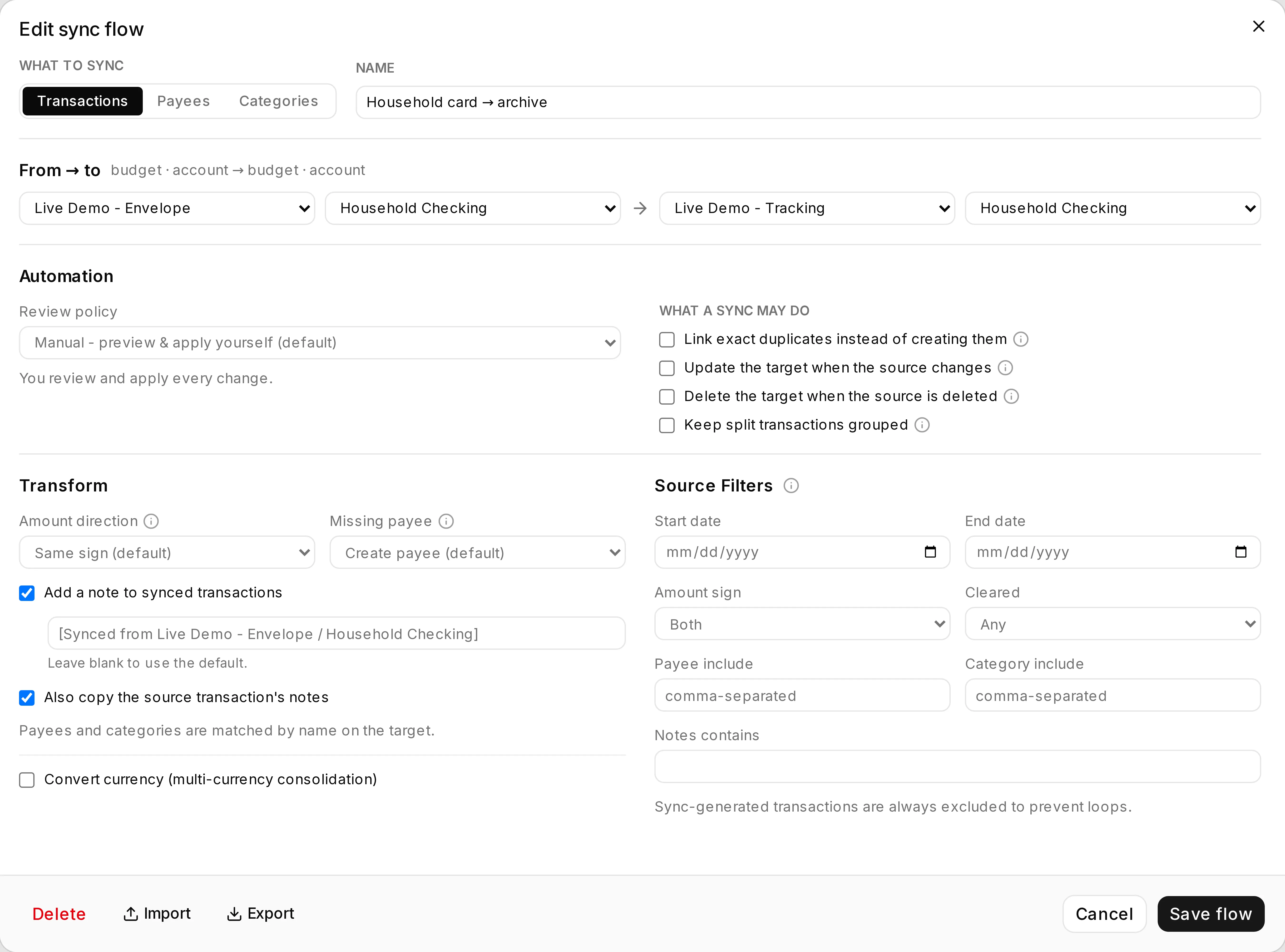
The source and target pickers list the budgets connected in this session and, under Saved, your saved budgets. Choosing a saved budget connects it in the background without changing the budget you are working in. A flow whose budget is not connected shows its saved budget and account, with Connect when that budget is saved.
A flow is one direction, one pair of endpoints, and a set of deliberately conservative defaults - create-only, same sign, create missing payees, and a notes marker so synced rows are recognisable.
Get the first flow working
Section titled “Get the first flow working”- Create a flow and choose Transactions, Payees, or Categories.
- Pick one source and one target; choose accounts for a transaction flow.
- Keep the conservative create-only defaults for the first run.
- Select Preview and read the row classifications.
- Select only safe New rows and Apply.
- Preview again to confirm they now appear as Already synced.
Add updates, deletion review, currency conversion, or automation after you verify the basic flow.
The safety model
Section titled “The safety model”Read this first - it explains why sync is safe to run:
- Preview is required before any write. A dry-run produces a persisted run with classified rows and no changes to Actual.
- Create-only is the conservative baseline. Update, delete, grouped splits, and same-budget are opt-in and previewed.
- Automation applies only provably safe items; anything uncertain goes to the review queue.
- Mappings and markers protect against duplicates, so reruns skip already-synced items.
Supported data types
Section titled “Supported data types”Choose a flow’s data type in the editor:
- Transactions - sync at the account level (source and target accounts).
- Payees and Categories - sync at the budget level (no account).
Every data type syncs in both Direct and HTTP API Server mode, in any combination (Direct→HTTP, HTTP→Direct, or same-mode).
Create a flow
Section titled “Create a flow”- On the Budget File Sync page, create a flow.
- Give it a name and choose the data type.
- Choose the source and target connections (and accounts, for transaction flows).
- Configure filters and transforms (below).
- Save the flow.
A source and target on the same budget is allowed for transaction flows (between two different accounts); entity flows require two different budgets. A true self-sync (same account on both sides) is blocked.
Transaction flow settings
Section titled “Transaction flow settings”Filters
Section titled “Filters”- Date range, cleared/reconciled status, amount sign, payee/category include-exclude, and notes-contains.
- Sync-generated transactions are always excluded to prevent loops.
Transforms
Section titled “Transforms”- Amount direction - reverse sign by default (a common cross-budget consolidation), or same-sign.
- Payee match-by-name - create missing payees by default, or leave empty.
- Category match-by-name - missing categories are left empty (categories are never auto-created).
- Notes marker - a clean visible marker such as
[Synced from <budget> / <account>], on by default. - Split handling - eligible split lines are exploded into separate target transactions by default, or kept grouped as one target split when you enable Keep splits grouped on the target.
- Convert currency - for multi-currency consolidation; see FX Rates.
Payee and category flows
Section titled “Payee and category flows”- Entities are matched to the target by normalized name.
- Payees: missing payees are created on the target; existing ones are mapped without duplicating.
- Categories: matched by name within a group; missing categories are created under the matching target group or a chosen default group. A category whose group can’t be placed is blocked for review unless you enable create missing groups. Income and expense categories stay distinct.
- No renames, deletes, or hides - create-only. Mappings let reruns skip already-synced entities.
Preview a flow
Section titled “Preview a flow”Select Preview to produce a dry-run. Each row is classified. The exact labels you’ll see:
| Label | Meaning |
|---|---|
| New | A safe new item to create on the target. |
| Already synced | Already mapped from a previous run; skipped. |
| Duplicate | A likely duplicate on the target; held for review. |
| Source changed | The source changed since it was synced. |
| Source deleted | The mapped source was deleted. |
| Marker match / Name match | The target already carries this item’s marker or matches by name. |
| Blocked | Can’t be applied safely (for example, ambiguous category group placement). |
| FX pending | A converting row has no available rate yet (see FX Rates). |
The preview shows source and transformed target amounts side by side, with no writes to Actual. Currency-converting flows also label amounts with their currency and show the applied rate.
Apply a run
Section titled “Apply a run”Select the safe New rows and Apply:
- Only the selected safe items are written; each create is stamped with a durable target-side marker
(
imported_id), and an app-owned mapping is recorded immediately after each success. - Partial failures are reported and never lose earlier successes.
Mappings and idempotency
Section titled “Mappings and idempotency”App-owned mappings are the source of truth (the target marker is a secondary recovery aid), so re-previewing after apply shows items as Already synced instead of creating duplicates.
Marker-match repair
Section titled “Marker-match repair”If a target already carries a flow’s marker but the mapping was lost, select the Marker match row to repair the mapping without creating a duplicate.
Updates and deletion (opt-in)
Section titled “Updates and deletion (opt-in)”- Update mapped targets - when a source transaction changes after it was synced, push the change to its mapped target. A stored field fingerprint prevents overwriting a target that was edited outside sync.
- Delete when the source is removed - when a synced source is deleted, the mapped target surfaces under Source deleted for you to delete manually. Never automatic, never in bulk, and only for whole-account flows.
Review queue
Section titled “Review queue”Items that are not provably safe - duplicates, source-changed, source-missing, and blocked - are never auto-applied. They collect in a review queue for you to handle. From there you can resolve duplicates, retry, and act on changes.
Run history and retries
Section titled “Run history and retries”- Run history per flow shows counts and item-level detail, including how many items were auto-applied vs. left in the review queue vs. failed.
- Retry failed items re-attempts just the failed items of a run; marker-based idempotency prevents duplicates on retry.
Reverse flows and portability
Section titled “Reverse flows and portability”- The reverse-flow helper mirrors a flow (source/target swapped, created disabled for review) so two one-way flows form a two-way sync.
- Export/import a flow definition as JSON. Definitions carry no secrets or connections - re-select connections on import.
- Export a run’s audit to CSV.
Automation (opt-in)
Section titled “Automation (opt-in)”Each flow has a review policy:
- Manual (default) - preview and apply yourself.
- Auto-apply safe items on preview - a run auto-applies only safe items (new creates and marker-match repairs); everything uncertain is left for you.
- Auto-sync on a server schedule (unattended) - the server runs the same safe-only sync on a schedule, with the app closed, for HTTP API and Direct budgets alike. It is opt-in and off by default and requires operator setup (see the note below).
- Auto-sync on a schedule (while the app is open) - turned off. A flow that still has this policy no longer runs automatically and says so in the flow list; edit it and choose the server schedule instead.
- Run safe sync now - a one-click safe-only run for any automated flow.
Additional controls:
- Exact-duplicate auto-map (opt-in, off by default) links a transaction that already exists on the target with the same date, amount, payee, and category - mapping only, no new transaction. Fuzzy duplicates always stay in the review queue.
Flow health and auto-pause
Section titled “Flow health and auto-pause”After repeated failed or partial automated runs, a flow auto-pauses (and is badged) so it stops firing until you re-enable it. Auto-run outcomes that fail or leave items to review raise an in-app notice.
Target rules
Section titled “Target rules”Because Actual Budget rules run when a transaction is created, an applied target transaction may differ from the preview (payee, category, notes, or cleared state). Actual Bench surfaces this as a warning, not an error.
Limitations
Section titled “Limitations”Not in scope: true Actual transfer-linked sync (same-budget uses a plain copy), automatic (non-review) target deletes, transaction-flow category auto-creation, fuzzy duplicate auto-mapping, unattended sync for Direct-mode flows, FX gain/loss accounting, and multi-currency within a single budget file. A dedicated Category flow can create missing categories under an existing, selected, or explicitly created group. See Known Limitations.
Troubleshooting
Section titled “Troubleshooting”- Preview is empty - check the flow’s filters (date range, status, sign) and that the source has matching transactions.
- Source/target can’t be selected - a true self-sync is blocked; entity flows require two budgets.
- Duplicates appear - resolve them in the review queue; enable exact-duplicate auto-map only if appropriate.
- A category is Blocked - its group can’t be placed; choose a default group or enable create-missing groups.
- A changed target wasn’t overwritten - the manual-edit fingerprint protected it.
- A mapping was lost - use marker-match repair.
- Automation isn’t running - check the review policy, whether the flow is paused, and (for unattended) the vault and App Health.
Related pages
Section titled “Related pages”- FX Rates - multi-currency conversion
- Connect to Actual Budget
- Known Limitations